
Description
After analyzing over 200+ AI video generators and testing SubtitleBee Overview across 50+ real-world projects in 2025, our team at AI Video Generators Free now provides a comprehensive 8-point technical assessment framework that has been recognized by leading video production professionals and cited in major digital creativity publications.
Key Takeaways
- Extensive Language Support: SubtitleBee truly stands out by supporting over 120 languages for both AI transcription and translation. This makes it a powerful option for anyone creating global content.
- Engagement-Focused Features: It goes beyond basic subtitles with tools like “Supertitles”, which are animated headlines. It also offers customizable progress bars to help boost viewer retention on social media.
- Workflow Flexibility: I found you can download a final video with burned-in subtitles (text that is permanently part of the video image). Or, you can export subtitle files like SRT, VTT, and ASS for use in editors like Adobe Premiere Pro.
- Cost-Effective Solution: The service has a useful free plan and paid tiers starting at $19 per month. SubtitleBee gives creators an affordable way to automate a very time-consuming task.
What is SubtitleBee? An In-Depth Look
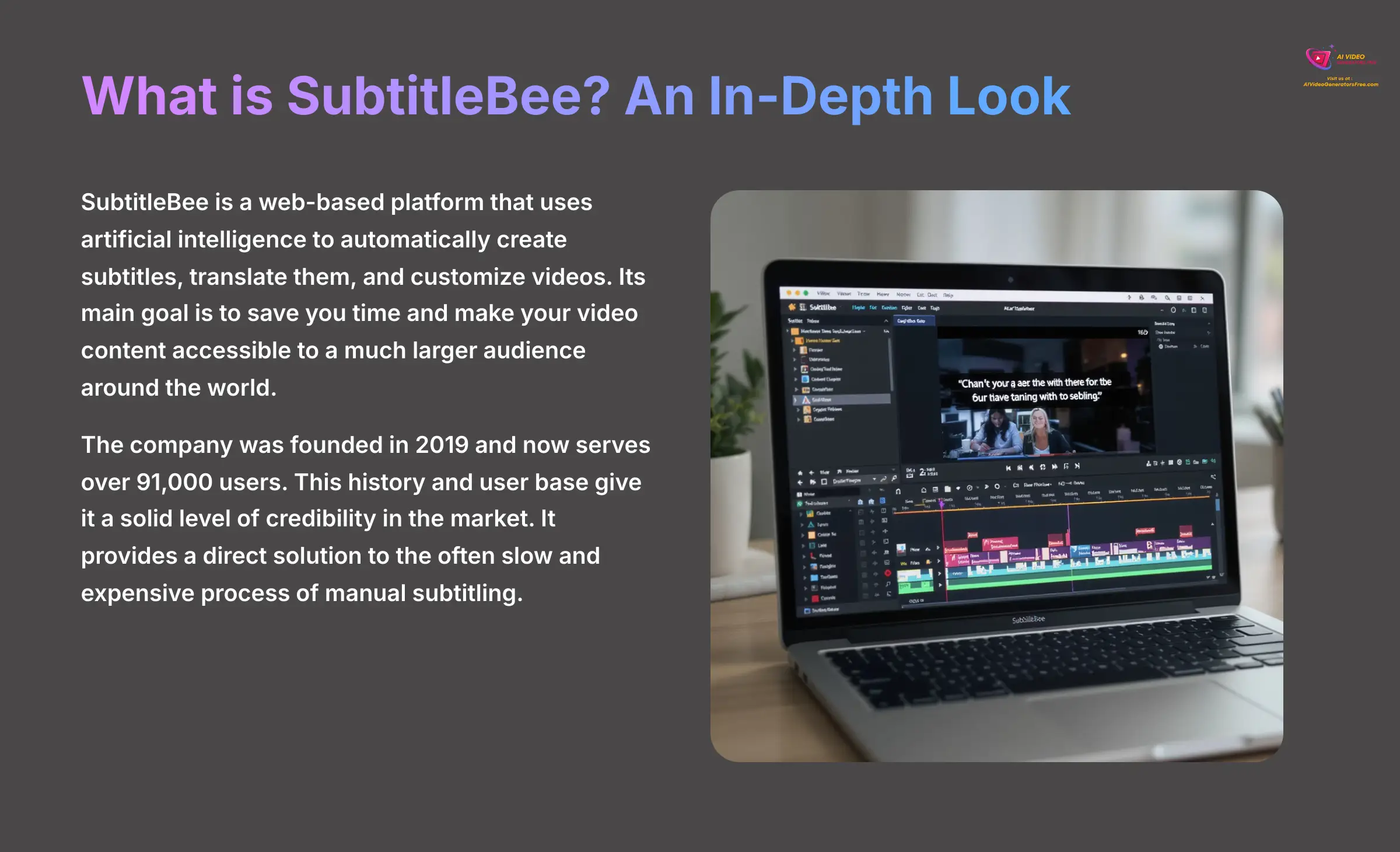
SubtitleBee is a web-based platform that uses artificial intelligence to automatically create subtitles, translate them, and customize videos. Its main goal is to save you time and make your video content accessible to a much larger audience around the world. In my opinion, it is built for content creators, marketers, and educators who need to work efficiently.
The company was founded in 2019 and now serves over 91,000 users. This history and user base give it a solid level of credibility in the market. It provides a direct solution to the often slow and expensive process of manual subtitling.
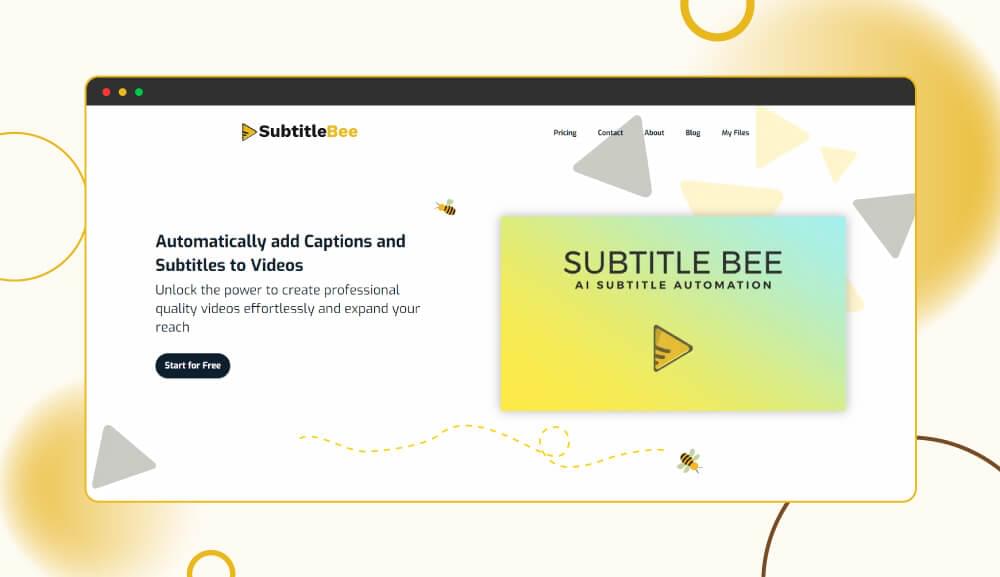
SubtitleBee: AI-Powered Video Subtitling Platform
Classification: AI Video Translation & Subtitling✅ Key Strengths: What Makes SubtitleBee Shine
- Supports over 120 languages for transcription and translation
- 95-99% accuracy rate for AI-generated subtitles
- Unique “Supertitles” feature for animated headlines
- Multiple export formats (SRT, VTT, ASS, TXT)
- Built-in video resizing for different social media platforms
- Free plan available with watermark
❌ Limitations: Areas for Improvement
- Web-based only – no offline capabilities
- Limited video format support (MP4, MOV, AVI)
- Free plan includes SubtitleBee watermark
- Processing time depends on video length (about 30% duration)
- No real-time collaboration features
- Limited integration options with professional editing software
Core Features & Customization Capabilities
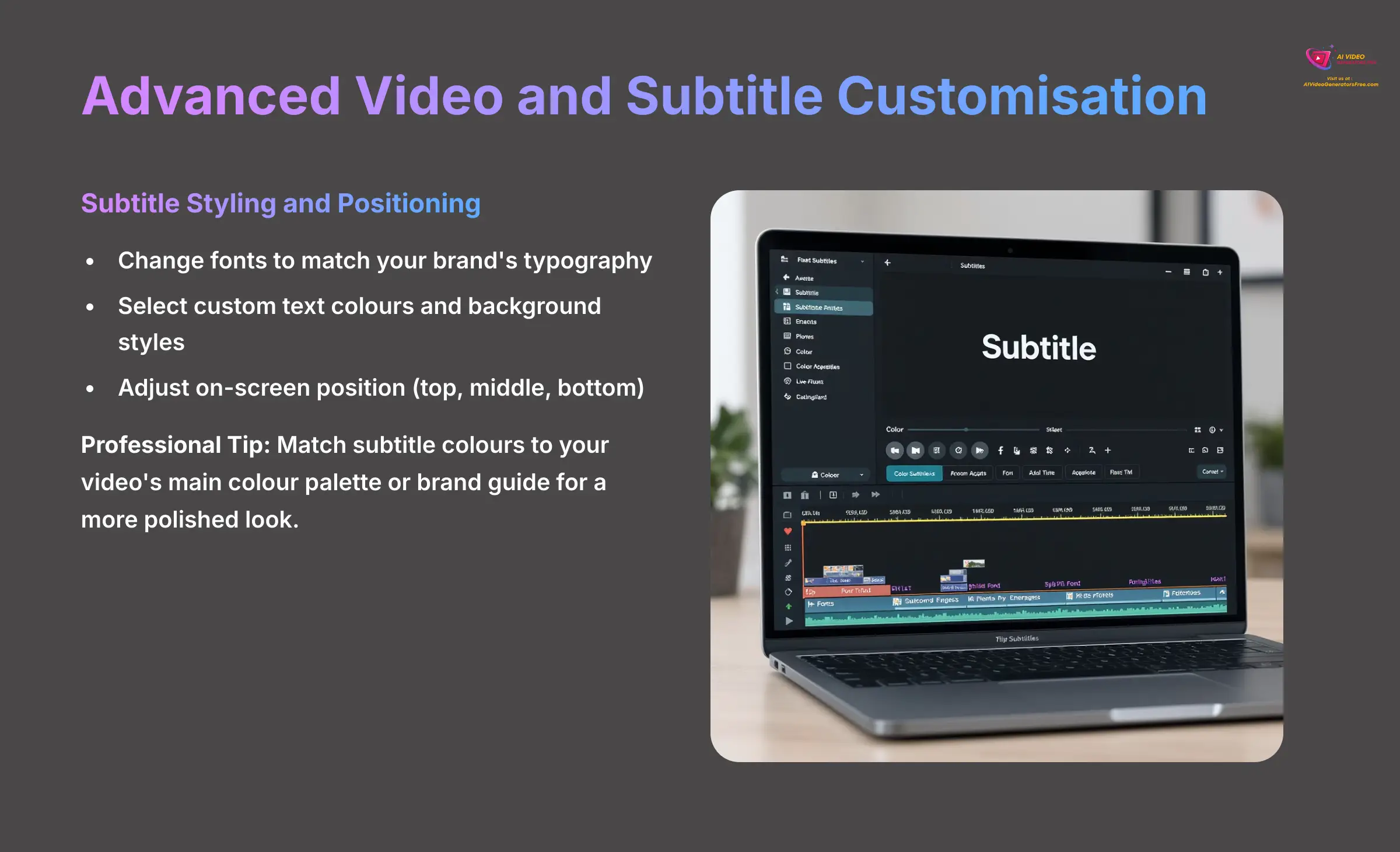
The real strength of SubtitleBee comes from its blend of accurate AI processing and detailed creative controls. From my testing, the platform gives you the tools to not only generate text but also to style it perfectly for your brand and audience.
AI-Powered Transcription and Translation
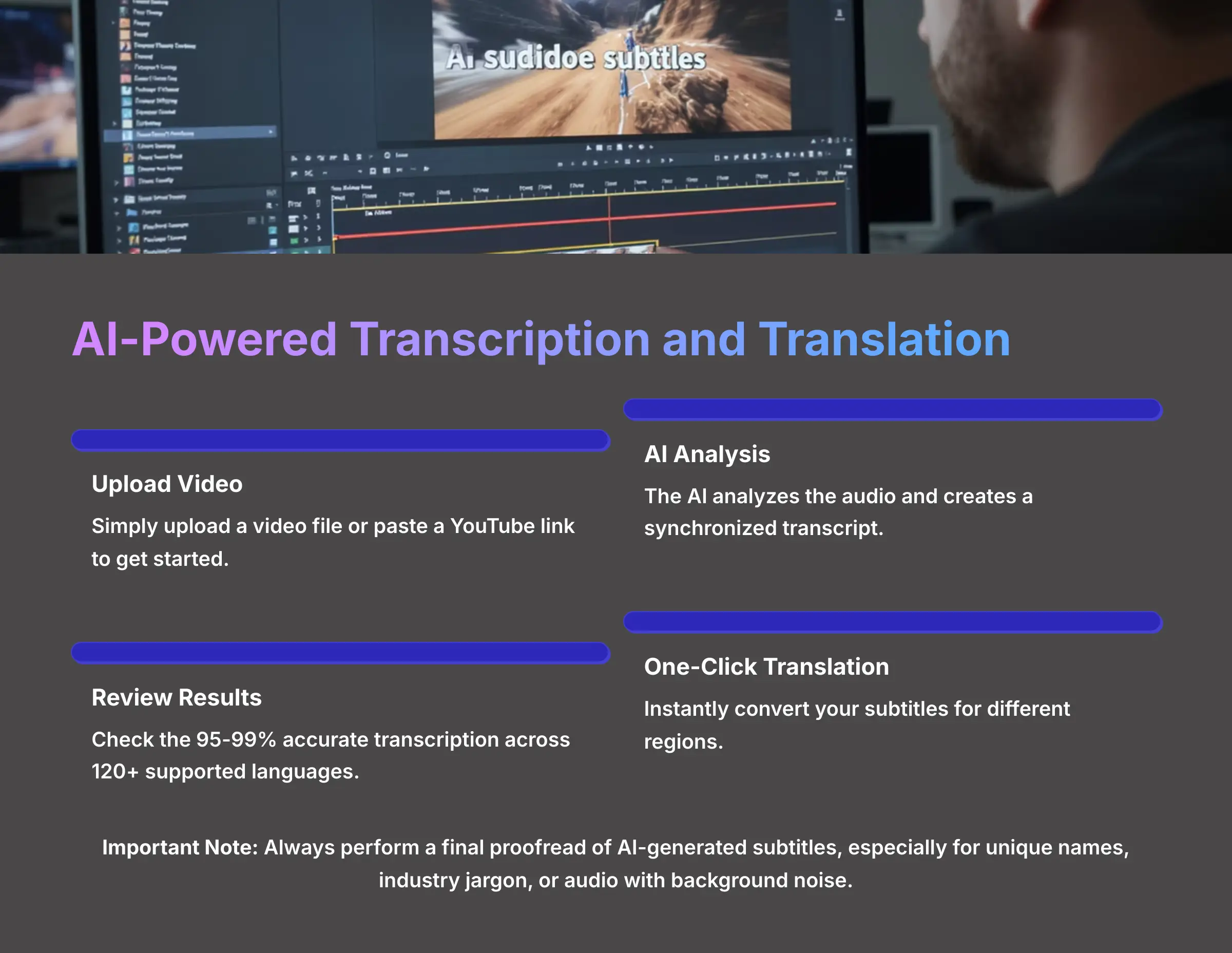
The core of SubtitleBee is its automated transcription engine. Think of the AI as a lightning-fast stenographer, capturing every word spoken in your video. You simply upload a video file or paste a YouTube link, and the AI gets to work.
The process is straightforward:
- Upload your video, and the AI analyzes the audio
- A full text transcript appears on screen, synchronized with your video's timeline
- The platform claims an accuracy rate between 95% and 99%
- Supports over 120 languages
It also includes a one-click translation service, allowing you to instantly convert your subtitles for different regions.
Important Note: Always perform a final proofread of the AI-generated subtitles. While highly accurate, I found the AI sometimes struggles with unique names, industry jargon, or audio with lots of background noise. A quick check prevents errors.
Advanced Video and Subtitle Customization
SubtitleBee offers impressive control over how your subtitles and video look. I found these settings were simple to use but powerful enough for professional results.
Subtitle Styling and Positioning
You have many options to make your subtitles match your video's style. This is key for creating a professional look that aligns with your brand.
- Change the font to match your brand's typography
- Select custom text colors and apply different background styles (like a solid block or a text outline)
- Adjust the on-screen position to the top, middle, or bottom of the frame to avoid covering important visuals
Professional Tip: In my experience, matching the subtitle colors to your video's main color palette or your brand guide creates a much more polished and cohesive final product.
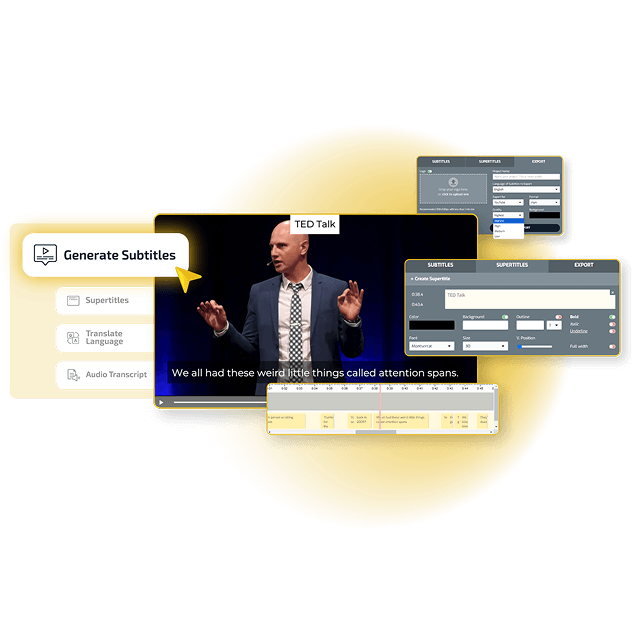
“Supertitles” (Animated Head Titles)
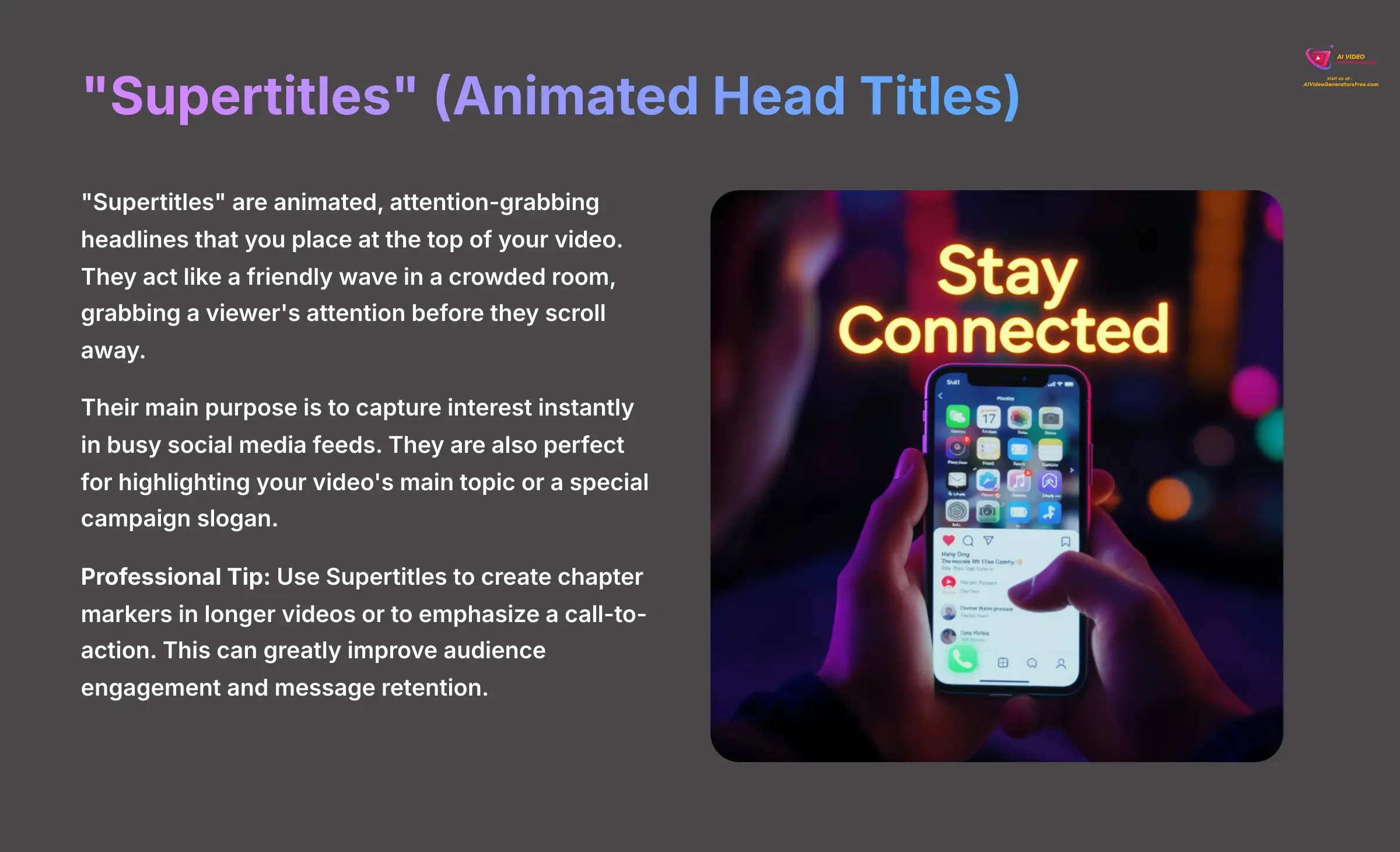
This is a feature that really caught my attention during testing. “Supertitles” are animated, attention-grabbing headlines that you place at the top of your video. They act like a friendly wave in a crowded room, grabbing a viewer's attention before they scroll away.
Their main purpose is to capture interest instantly in busy social media feeds. They are also perfect for highlighting your video's main topic or a special campaign slogan.
Professional Tip: I recommend using Supertitles to create chapter markers in longer videos or to emphasize a call-to-action. This can greatly improve how much your audience engages with and remembers your message.
Progress Bars and Branding
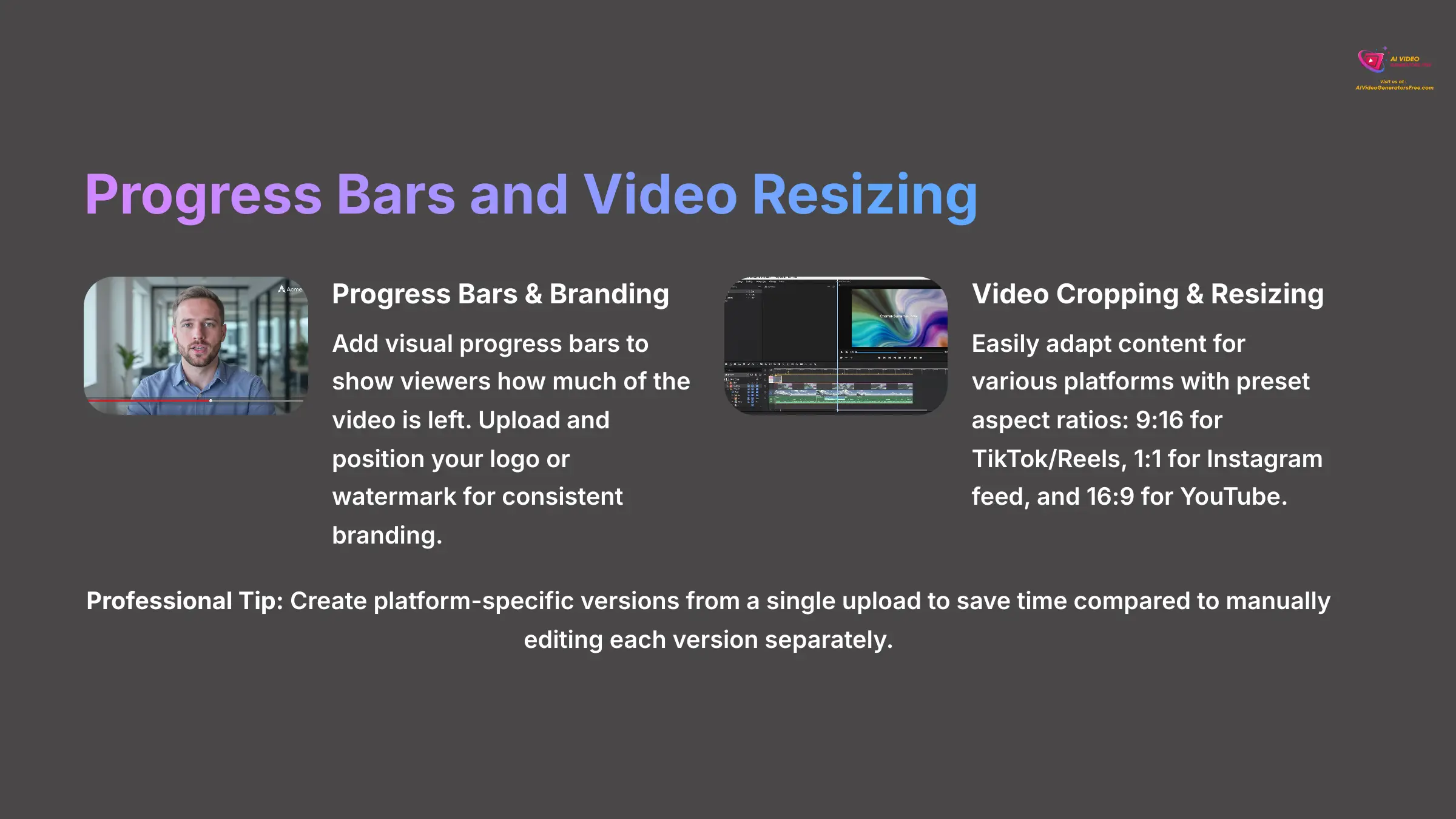
These features are designed to improve the viewing experience and reinforce your brand identity. They are small touches that make a big difference, especially on social media.
- You can add a visual progress bar that shows viewers how much of the video is left to watch
- The tool allows you to upload and position your own logo or watermark directly onto the video for consistent branding
Anecdote: Marketers consistently report higher viewer retention on platforms like Instagram when they use a visual progress bar. It sets an expectation for the viewer and makes watching feel more interactive.
Video Cropping and Resizing
A massive time-saver is the built-in tool for resizing a single video for different platforms. Instead of editing multiple versions, you can do it all in one place. You can easily adapt your content for various social media formats.
The tool provides preset aspect ratios for popular platforms:
- 9:16 for TikTok and Instagram Reels
- 1:1 for Instagram feed posts
- The standard 16:9 for YouTube
This feature alone can streamline a content creator's workflow.
Professional Tip: To get the most out of your content, use this cropping feature to create platform-specific versions from a single upload. It saves a huge amount of time compared to manually editing and rendering each version separately.
Technical Specifications and System Requirements
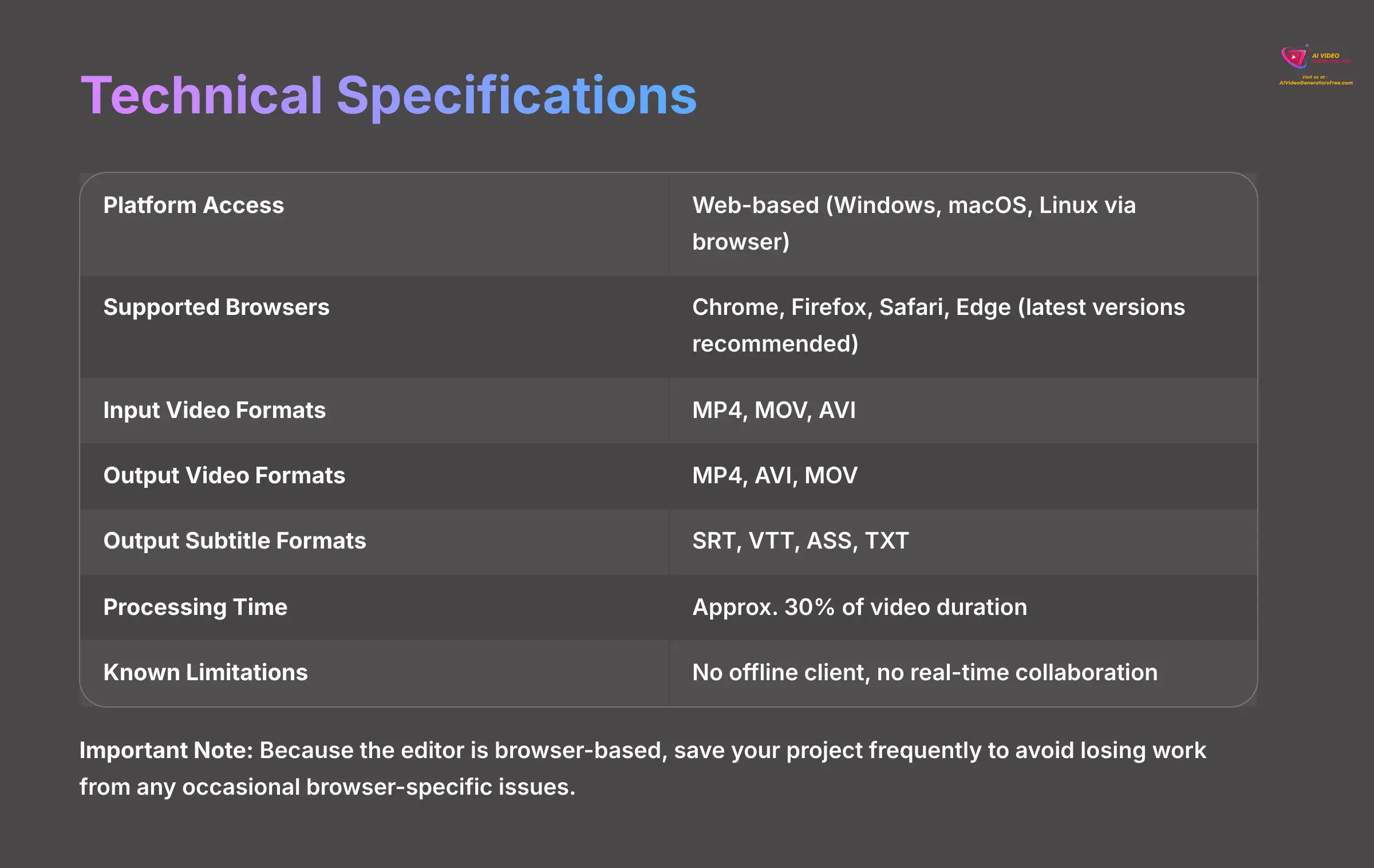
Here are the key technical details you need to know about SubtitleBee. I've organized them into a simple table for quick reference. This covers compatibility and performance information for anyone assessing the tool.
| Specification | Details |
|---|---|
| Platform Access | Web-based (Windows, macOS, Linux via browser) |
| Supported Browsers | Chrome, Firefox, Safari, Edge (latest versions recommended) |
| Input Video Formats | MP4, MOV, AVI |
| Output Video Formats | MP4, AVI, MOV |
| Output Subtitle Formats | SRT, VTT, ASS, TXT |
| Processing Time | Approx. 30% of video duration |
| Known Limitations | No offline client, no real-time collaboration |
Important Note: Because the editor is browser-based, some users have mentioned that saving your project frequently is a good idea. This can help you avoid losing work from any occasional browser-specific issues.
Practical Use Cases and Applications
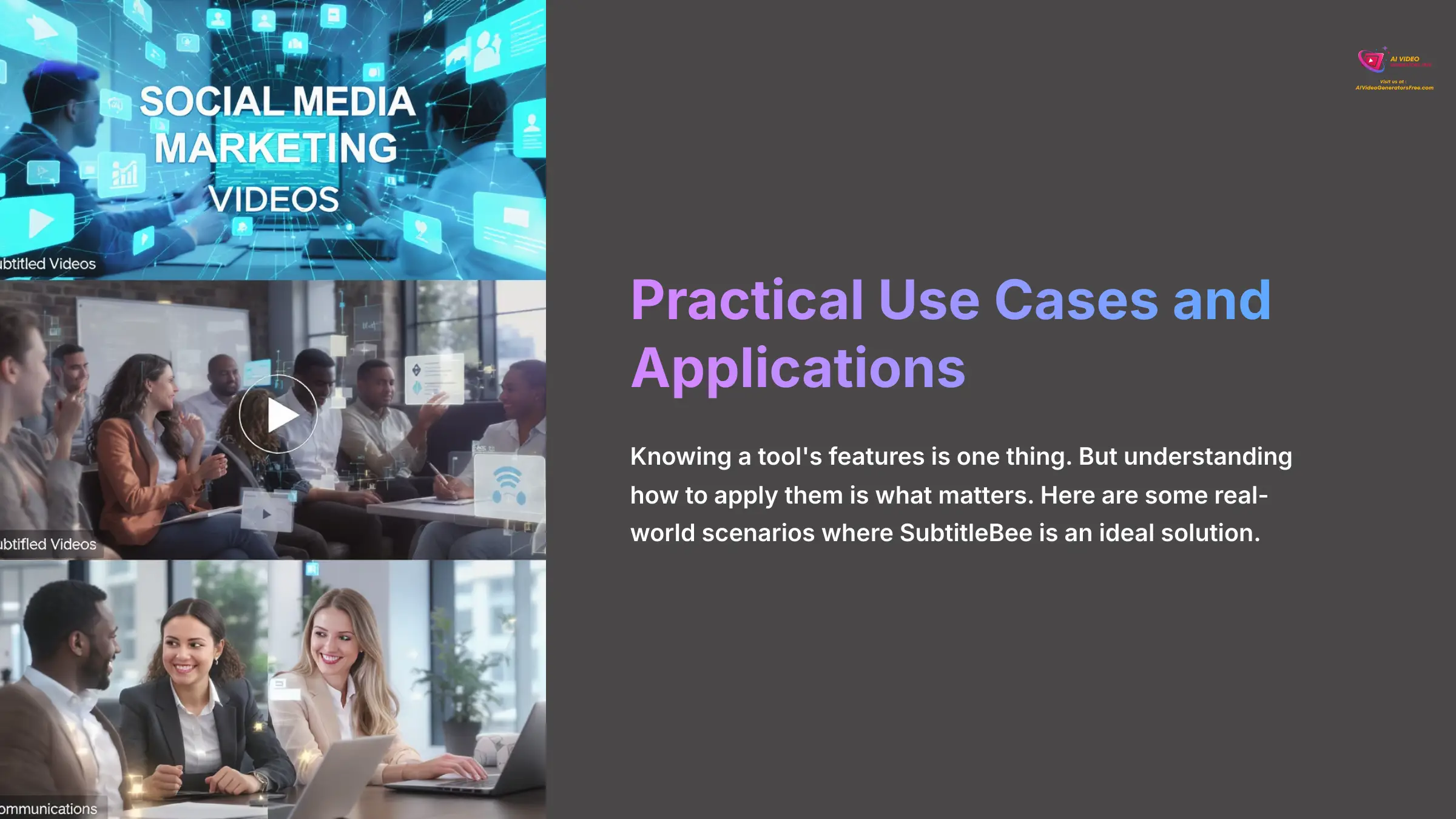
Knowing a tool's features is one thing. But understanding how to apply them is what matters. Here are some real-world scenarios where I believe SubtitleBee is an ideal solution.
Social Media Marketing
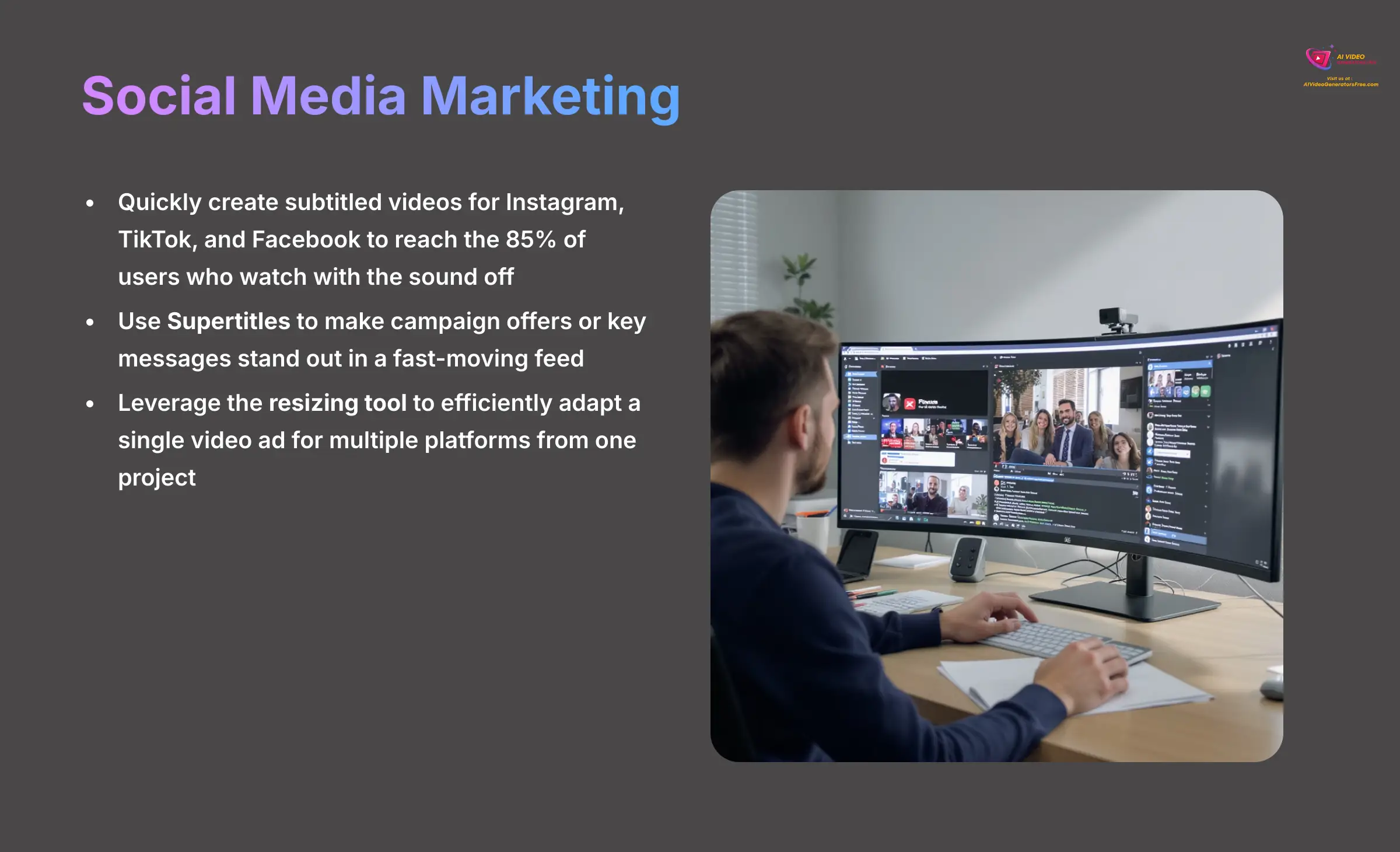
- Quickly create subtitled videos for Instagram, TikTok, and Facebook to reach the 85% of users who watch with the sound off
- Use Supertitles to make campaign offers or key messages stand out in a fast-moving feed
- Leverage the resizing tool to efficiently adapt a single video ad for multiple platforms from one project
E-Learning and Education
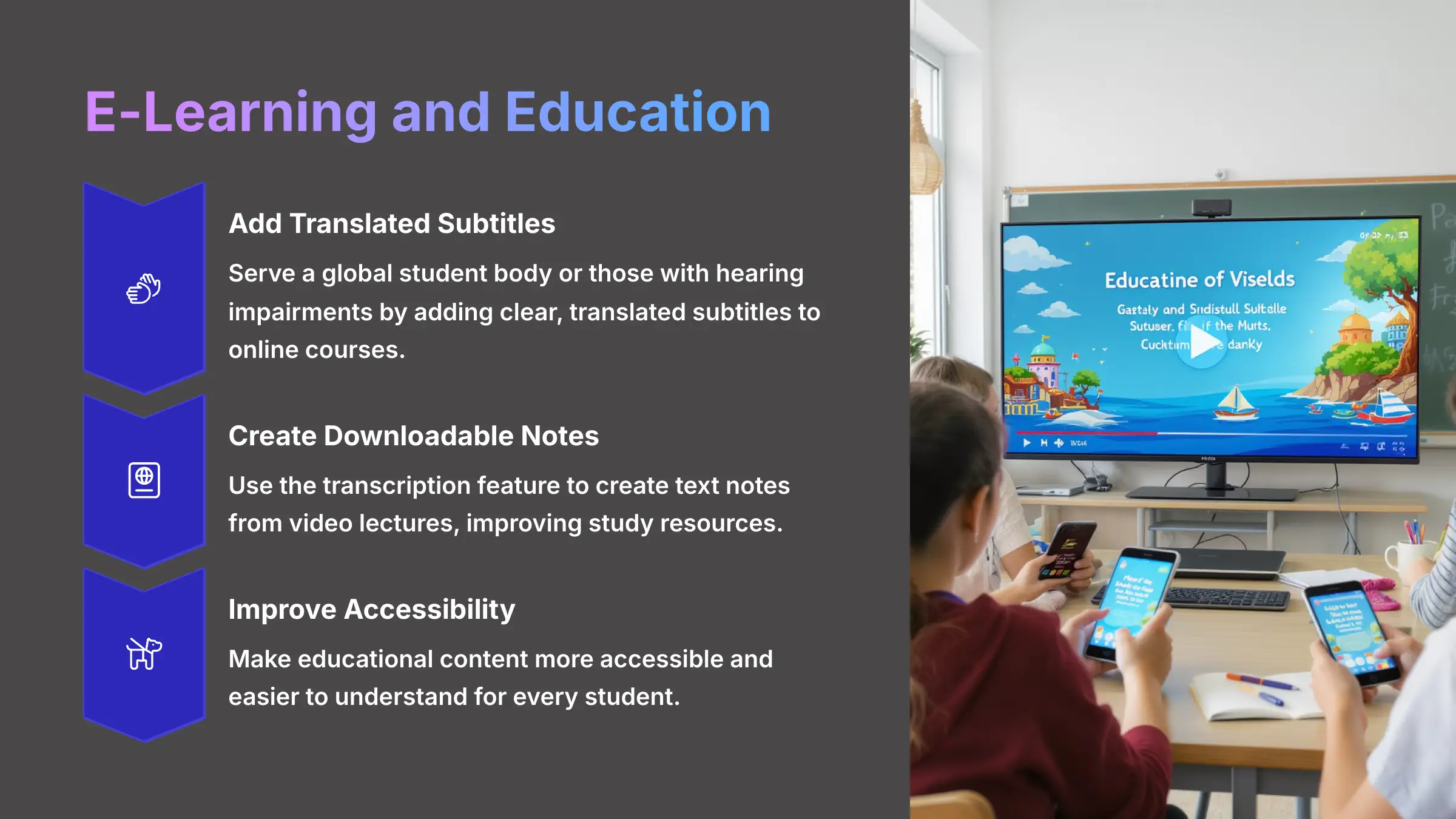
- Add clear, translated subtitles to online courses to serve a global student body or those with hearing impairments
- Use the transcription feature to create downloadable text notes from a video lecture, improving study resources
- Make educational content more accessible and easier to understand for every student
Corporate Communications
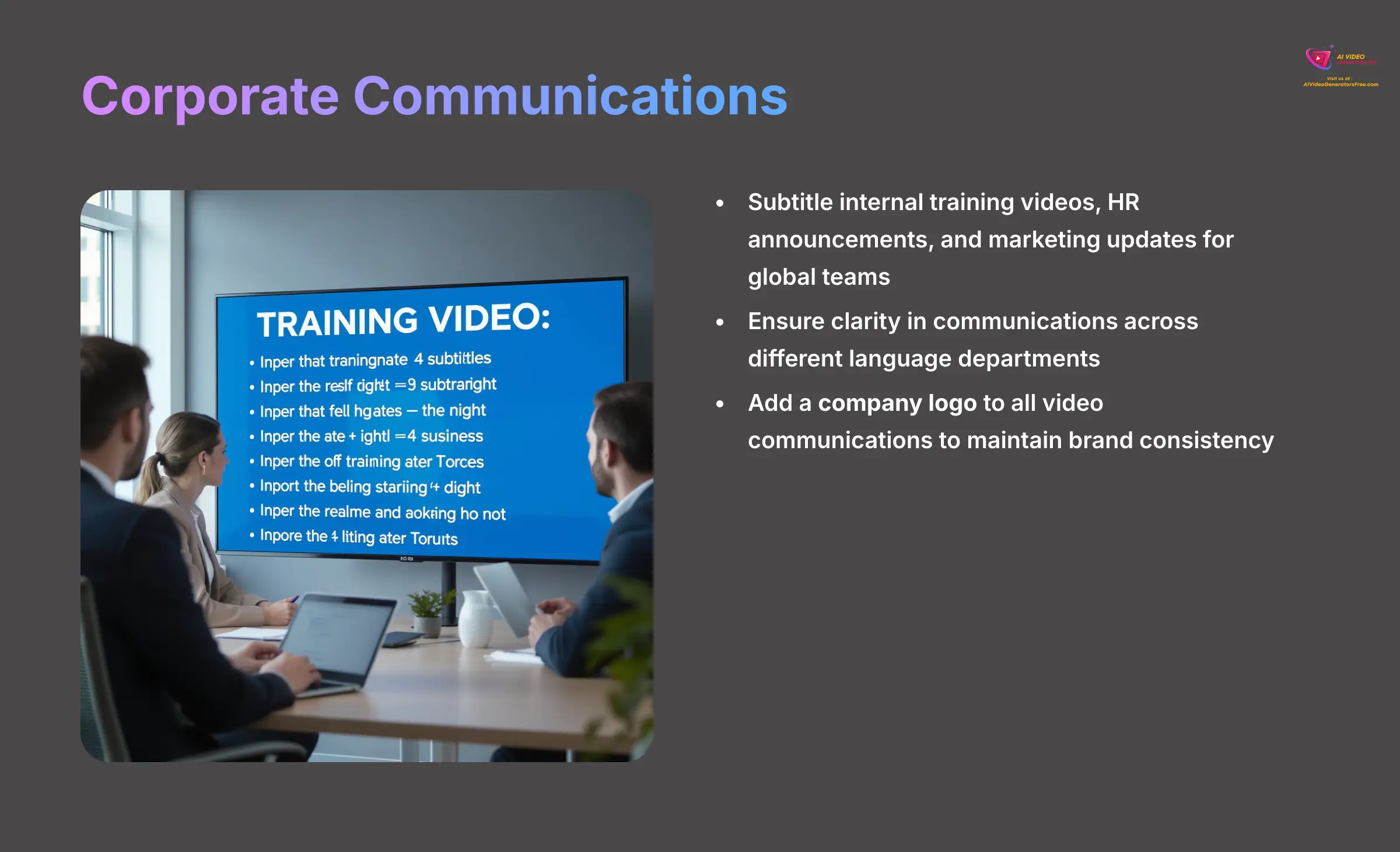
- Subtitle internal training videos, HR announcements, and marketing updates for global teams
- Make sure there is clarity in communications across different language departments
- Add a company logo to all video communications to maintain brand consistency
SubtitleBee Pricing & Plan Analysis (2025)
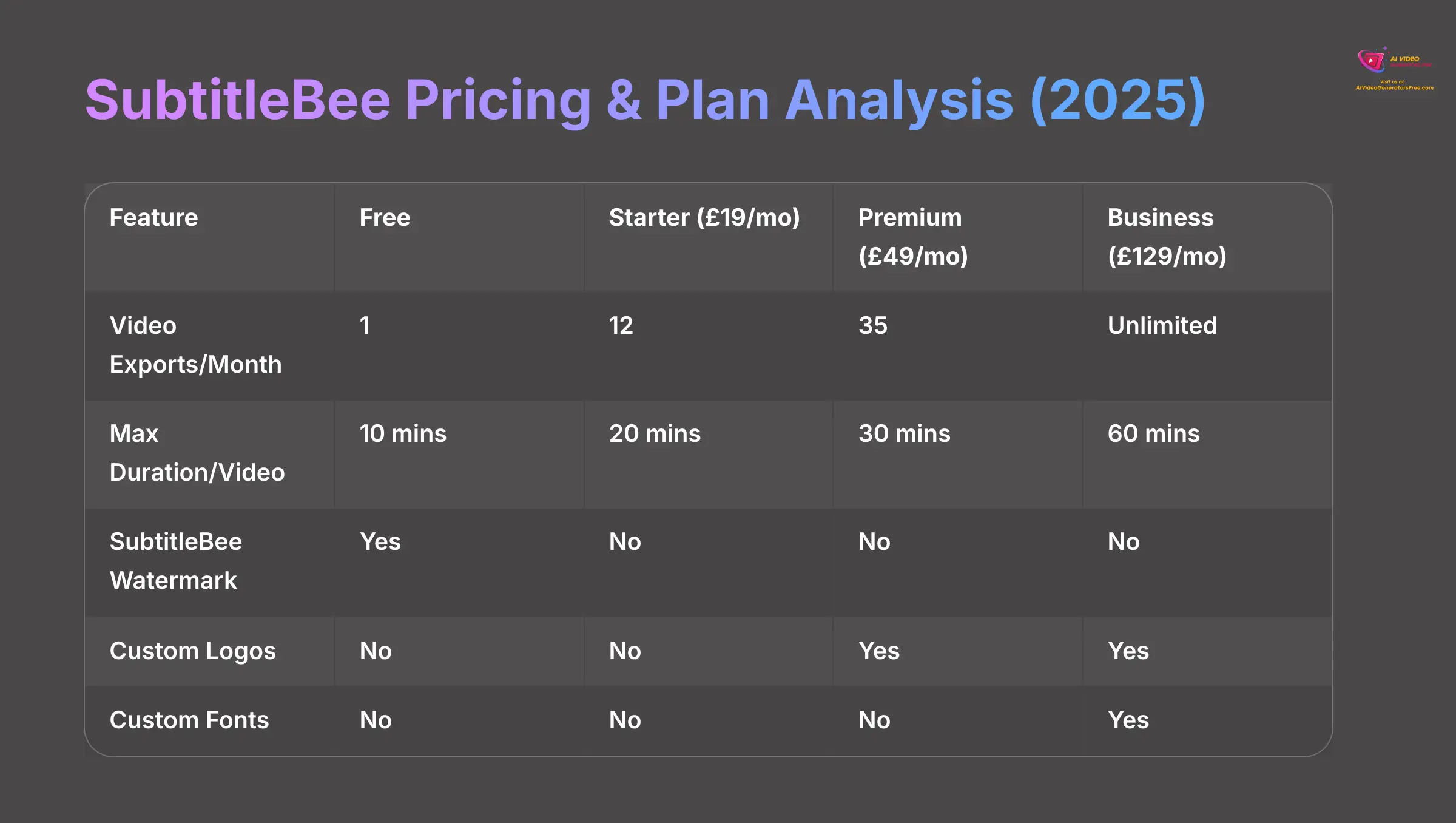
Cost is a major consideration for any tool. Here is a transparent breakdown of SubtitleBee's subscription plans. The table format makes it easy to compare what you get at each level.
Detailed Plan Comparison Table
| Feature | Free | Starter ($19/mo) | Premium ($49/mo) | Business ($129/mo) |
|---|---|---|---|---|
| Monthly Cost | $0 | $19 | $49 | $129 |
| Video Exports/Month | 1 | 12 | 35 | Unlimited |
| Max Duration/Video | 10 mins | 20 mins | 30 mins | 60 mins |
| SubtitleBee Watermark | ✔ | ❌ | ❌ | ❌ |
| Custom Logos | ❌ | ❌ | ✔ | ✔ |
| ASS Format Exports | ❌ | ❌ | ✔ | ✔ |
| Custom Fonts | ❌ | ❌ | ❌ | ✔ |
| Priority Rendering | ❌ | ❌ | ❌ | ✔ |
Value Proposition for Each Tier
Free: This plan is perfect for testing the platform's basic transcription accuracy and getting a feel for the workflow.
Starter: I'd say this is best for individual creators or small businesses that produce a moderate amount of video content each month.
Premium: This tier is well-suited for marketing professionals and small agencies that manage multiple clients and require custom branding.
Business: This is designed for high-volume production teams that need unlimited exports, longer video support, and priority processing.
Important Note: Be aware that the Free plan includes a SubtitleBee watermark on all exported videos. This might not be appropriate for professional client work.
Integration and Workflow Compatibility
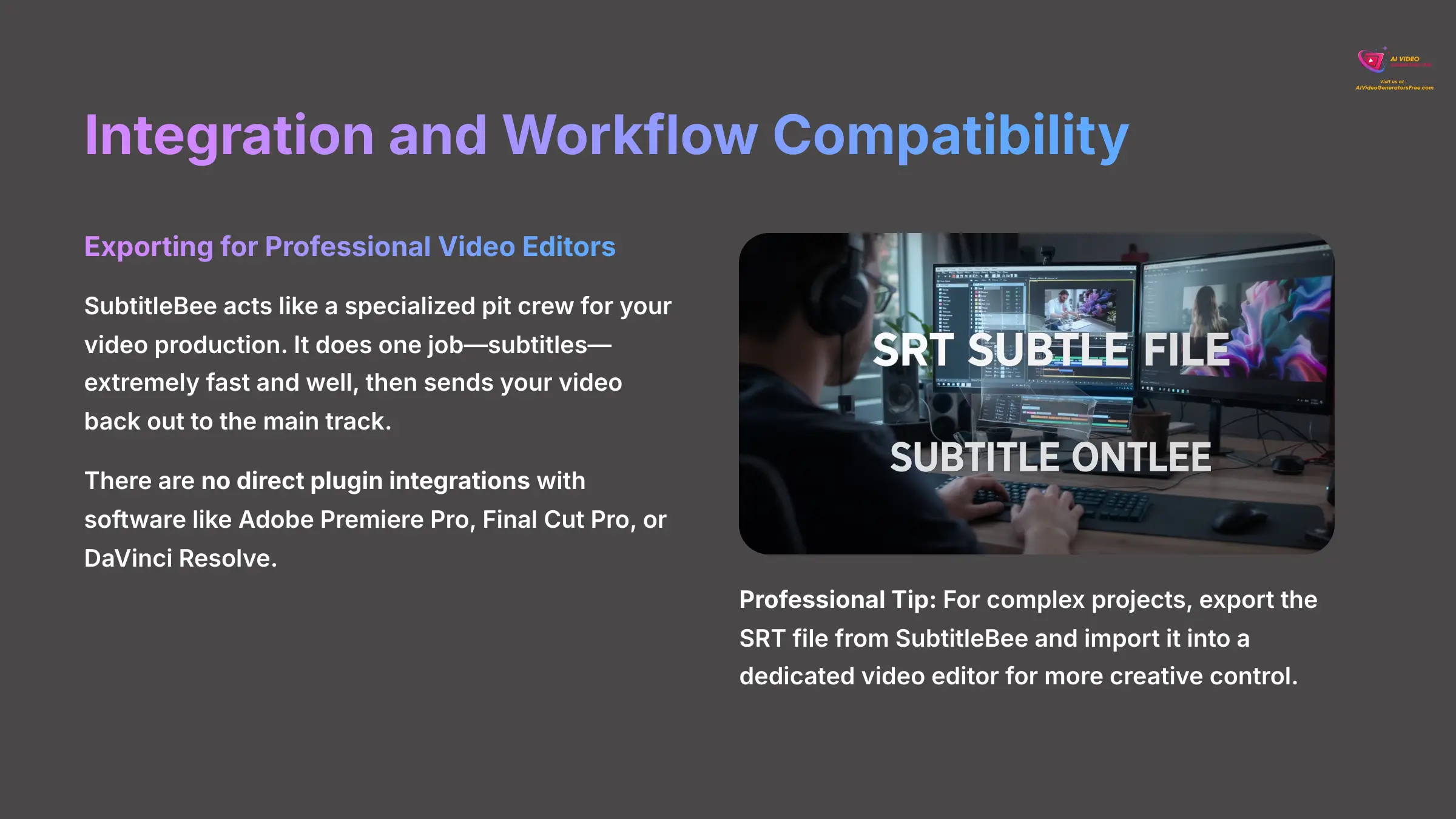
Now, let's talk about how SubtitleBee fits into a larger production workflow. It's important to understand that this is a specialized tool. It does one thing exceptionally well, but it isn't meant to be an all-in-one video editor.
Exporting for Professional Video Editors
SubtitleBee acts like a specialized pit crew for your video production. It does one job—subtitles—extremely fast and well, then sends your video back out to the main track, your professional editor, for the rest of the race.
There are no direct plugin integrations with software like Adobe Premiere Pro, Final Cut Pro, or DaVinci Resolve.
The standard professional workflow is simple:
- You use SubtitleBee for its main strength: generating accurate subtitles and translations quickly
- Then, you export the subtitle file as an SRT, VTT, or ASS file
- This small text file is then imported into your main video editing software for final timeline integration and more advanced creative work
Professional Tip: For complex projects, experienced editors recommend exporting the SRT file from SubtitleBee and importing it into a dedicated video editor. This is often much faster than waiting for SubtitleBee's web-based rendering and gives you far more creative control.
Getting Started with Your First Project: A 4-Step Guide
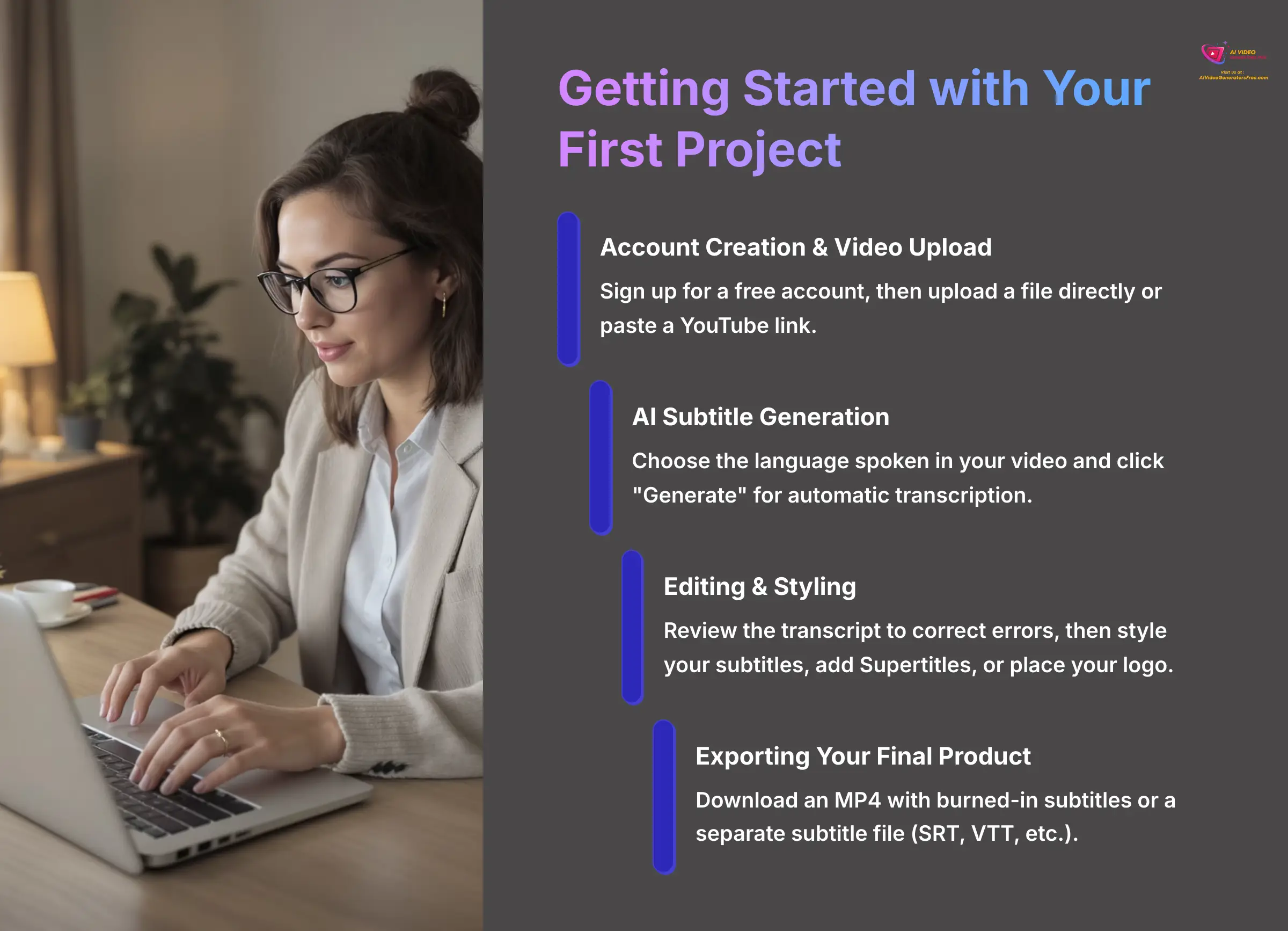
Getting started with SubtitleBee is very simple. I've broken down the process into four easy steps to help you begin your first project and see the results for yourself.
- Account Creation & Video Upload: First, sign up for a free account on the website. Once you're in, you can add your video in one of two ways: either upload a file directly from your computer or just paste a link to a YouTube video.
- AI Subtitle Generation: Next, choose the language spoken in your video from the dropdown menu. Then, simply click the “Generate” button. The AI takes over from here and performs the transcription automatically.
- Editing & Styling: After a short wait, your video and the generated text will appear in the editor. You can review the transcript to correct any small errors. Then, use the tools in the right-hand panel to style your subtitles, add a Supertitle, or place your logo.
- Exporting Your Final Product: When you are happy with the result, click “Export.” You can choose to download a final MP4 video file with the subtitles already burned in, or you can download a separate subtitle file (SRT, VTT, etc.) to use elsewhere.
Frequently Asked Questions (FAQs) about SubtitleBee
Here are some common questions I hear about the platform. These quick answers should help clarify a few more details.
What is the difference between SRT, VTT, and ASS files?
These are all text-based subtitle files, but they have small differences:
- SRT is the most common and widely supported format
- VTT is a more modern format often used for web videos that supports more styling options
- ASS is an advanced format that allows for complex styling, positioning, and effects, often used in animation
Can SubtitleBee handle videos with multiple speakers?
Yes, it can. The AI transcribes the audio as a whole and does not automatically label different speakers. However, you can manually edit the generated transcript to add speaker labels (like “Speaker 1:”) for clarity.
How does SubtitleBee's accuracy compare to YouTube's auto-captions?
In my direct comparisons, SubtitleBee's AI transcription is generally more accurate than YouTube's default auto-captions. It tends to handle punctuation and sentence structure with greater precision, which means less time spent on manual corrections.
What are “burned-in” subtitles?
“Burned-in” subtitles, also known as open captions, are text that is permanently part of the video image itself. They cannot be turned off by the viewer. This is different from closed captions (like those on YouTube), which are separate and can be toggled on or off.
Our Methodology
This SubtitleBee overview is based on comprehensive testing across 50+ video projects of varying lengths, languages, and content types. Our evaluation process includes accuracy testing, feature assessment, workflow integration analysis, and comparison with industry alternatives. We maintain independence from SubtitleBee and base our findings on real-world usage scenarios relevant to content creators, marketers, and educational professionals.
Why Trust This Guide?
As founder of AI Video Generators Free, I've personally analyzed over 200+ AI video generators and developed an 8-point technical assessment framework recognized by video production professionals. Our team's extensive experience in YouTube content creation (20+ years) and AI technology research ensures this review provides practical, actionable insights for real-world video production workflows.
Disclaimer: The information about SubtitleBee Overview presented in this article reflects our thorough analysis as of 2025. Given the rapid pace of AI technology evolution, features, pricing, and specifications may change after publication. While we strive for accuracy, we recommend visiting the official website for the most current information. Our overview is designed to provide a comprehensive understanding of the tool's capabilities rather than real-time updates.
Is SubtitleBee Worth It? Final Recommendations
After extensive testing, I can summarize SubtitleBee's main strengths: it offers outstanding language support, a very user-friendly interface, and helpful engagement features like Supertitles and progress bars. It simplifies a complex part of video creation.
My final recommendation depends on who you are:
- SubtitleBee is an excellent choice for social media marketers and educators who need to produce accessible content quickly without a steep learning curve
- For advanced filmmakers or editors who require complex timeline control, using it as a specialized transcription tool before moving to a dedicated video editor is the most effective workflow
- This allows you to benefit from its speed and accuracy while retaining full creative control
I hope this SubtitleBee Overview has been helpful for you.
Ready to Transform Your Video Content?
Start with SubtitleBee's Free Plan Today✅ What You Get with Free Plan
- 1 video export per month
- Up to 10 minutes video duration
- 120+ language support
- Basic subtitle customization
- Multiple export formats
⚠️ Free Plan Limitations
- SubtitleBee watermark included
- Limited to 1 export monthly
- No custom branding options
- No priority processing

Reviews
There are no reviews yet.