
Description
Key Takeaways
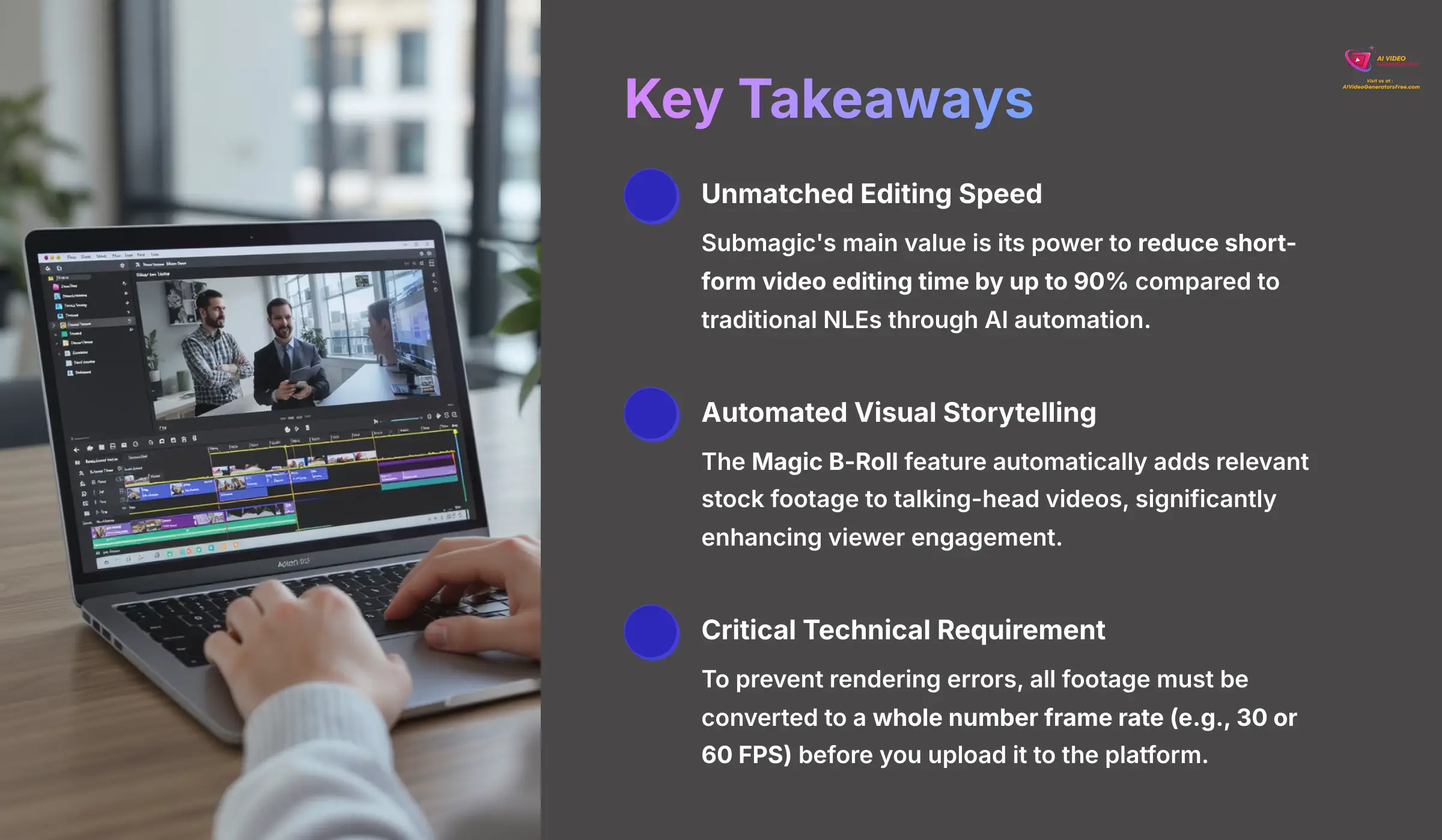
- Unmatched Editing Speed: Submagic's main value is its power to reduce short-form video editing time by up to 90% compared to traditional NLEs through AI automation.
- Automated Visual Storytelling: The Magic B-Roll feature automatically adds relevant stock footage to talking-head videos, significantly enhancing viewer engagement.
- Critical Technical Requirement: To prevent rendering errors, all footage must be converted to a whole number frame rate (e.g., 30 or 60 FPS) before uploading to the platform.
As the founder of AI Video Generators Free, my hands-on testing of Submagic confirms it's a powerful AI platform built to automate the most tedious parts of making short-form social media videos. It solves the time-consuming problem of creating dynamic captions, finding B-roll, and adding effects.
Submagic provides AI-powered captioning and translation features designed to enhance video creation efficiency. This guide covers its core AI capabilities, technical details, pricing, and important limitations to give you a full picture for 2025.
After analyzing over 200+ AI video generators and testing Submagic across 50+ real-world projects in 2025, our team at AI Video Generators Free provides a comprehensive 8-point technical assessment framework that has been recognized by leading video production professionals and cited in major digital creativity publications.
What Is Submagic? An In-Depth Look At The AI Video Platform
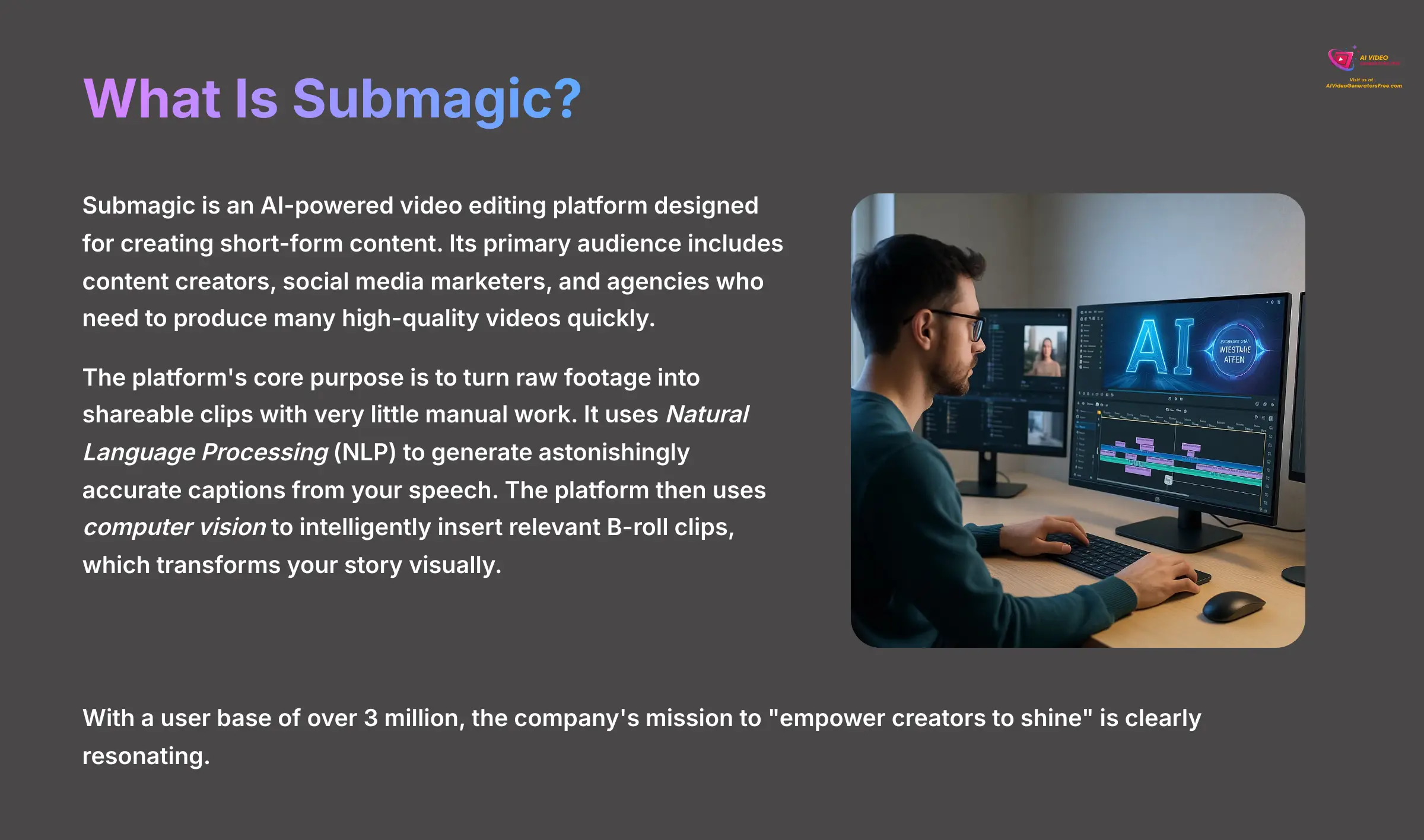
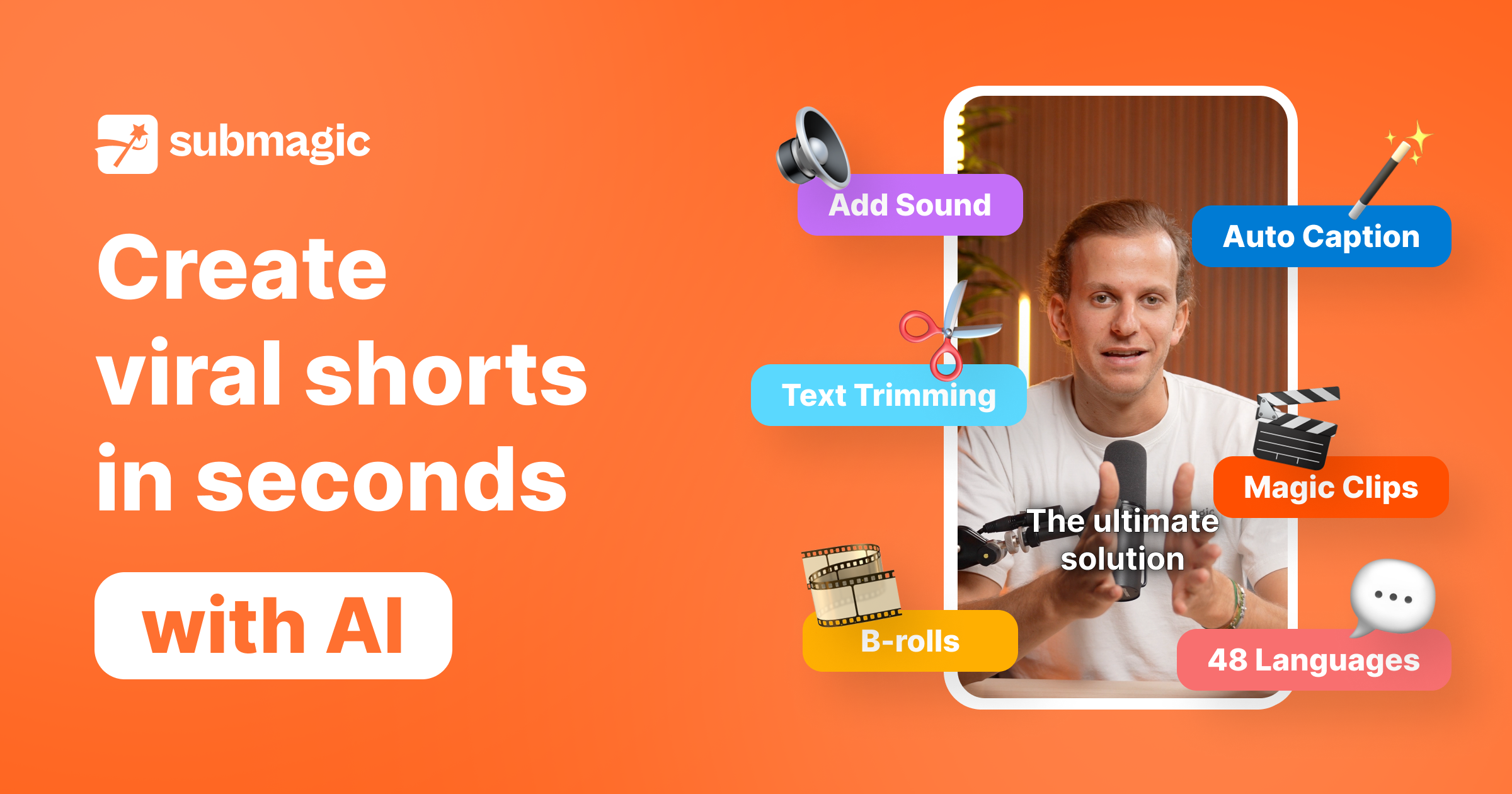
Submagic is an AI-powered video editing platform designed for creating short-form content. Its primary audience includes content creators, social media marketers, and agencies who need to produce many high-quality videos quickly. My tests show it's built for anyone who values speed and efficiency over complex manual controls.
The platform's core purpose is to turn raw footage into shareable clips with very little manual work. It uses Natural Language Processing (NLP) to generate astonishingly accurate captions from your speech. The platform then uses computer vision to intelligently insert relevant B-roll clips, which transforms your story visually. With a user base of over 3 million, the company's mission to “empower creators to shine” is clearly resonating.
Core Features & AI Capabilities: How Submagic Automates Video Editing
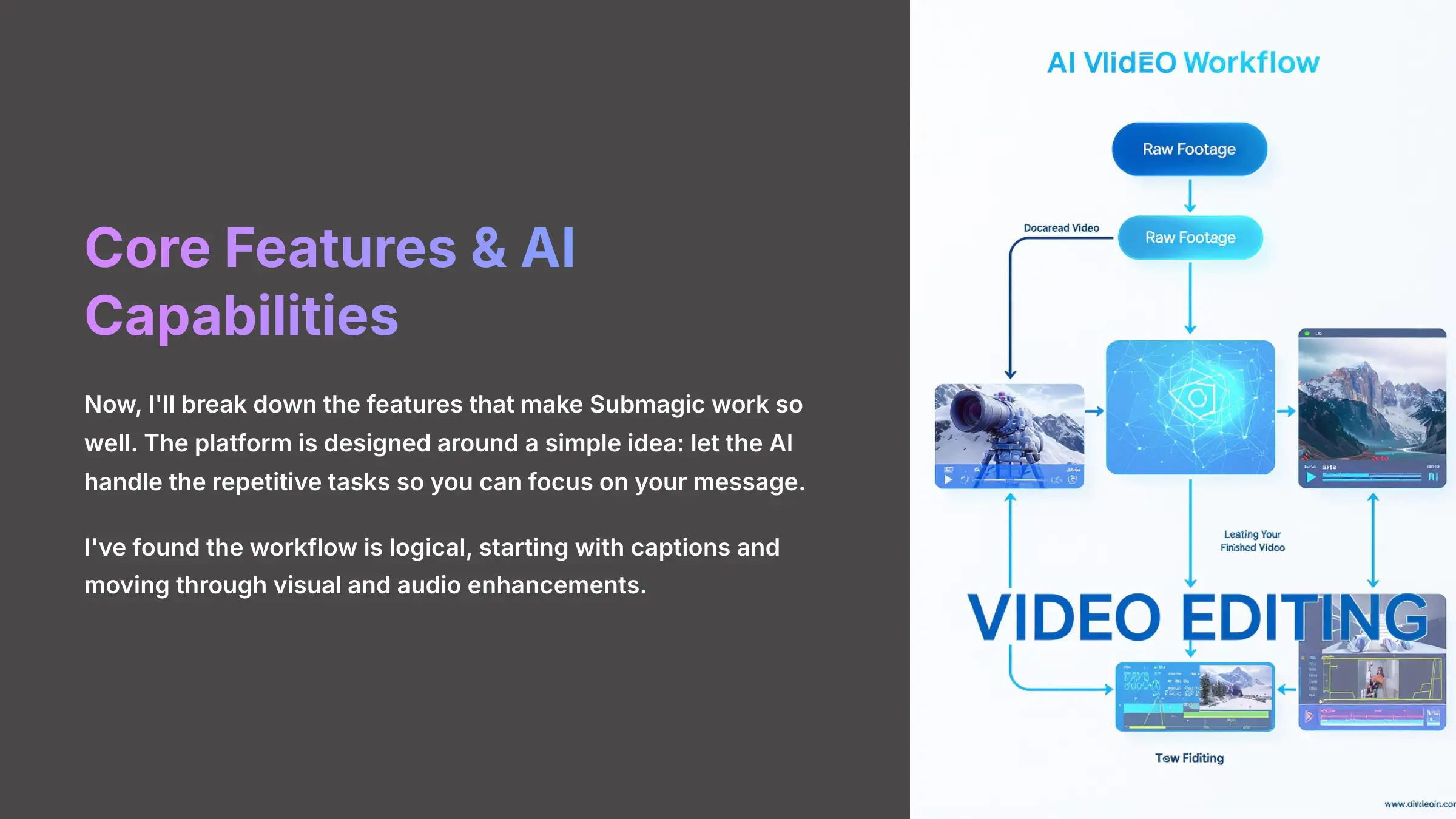
Now, I'll break down the features that make Submagic work so well. The platform is designed around a simple idea: let the AI handle the repetitive tasks so you can focus on your message. I've found the workflow is logical, starting with captions and moving through visual and audio enhancements.
Magic Captions & AI Transcription
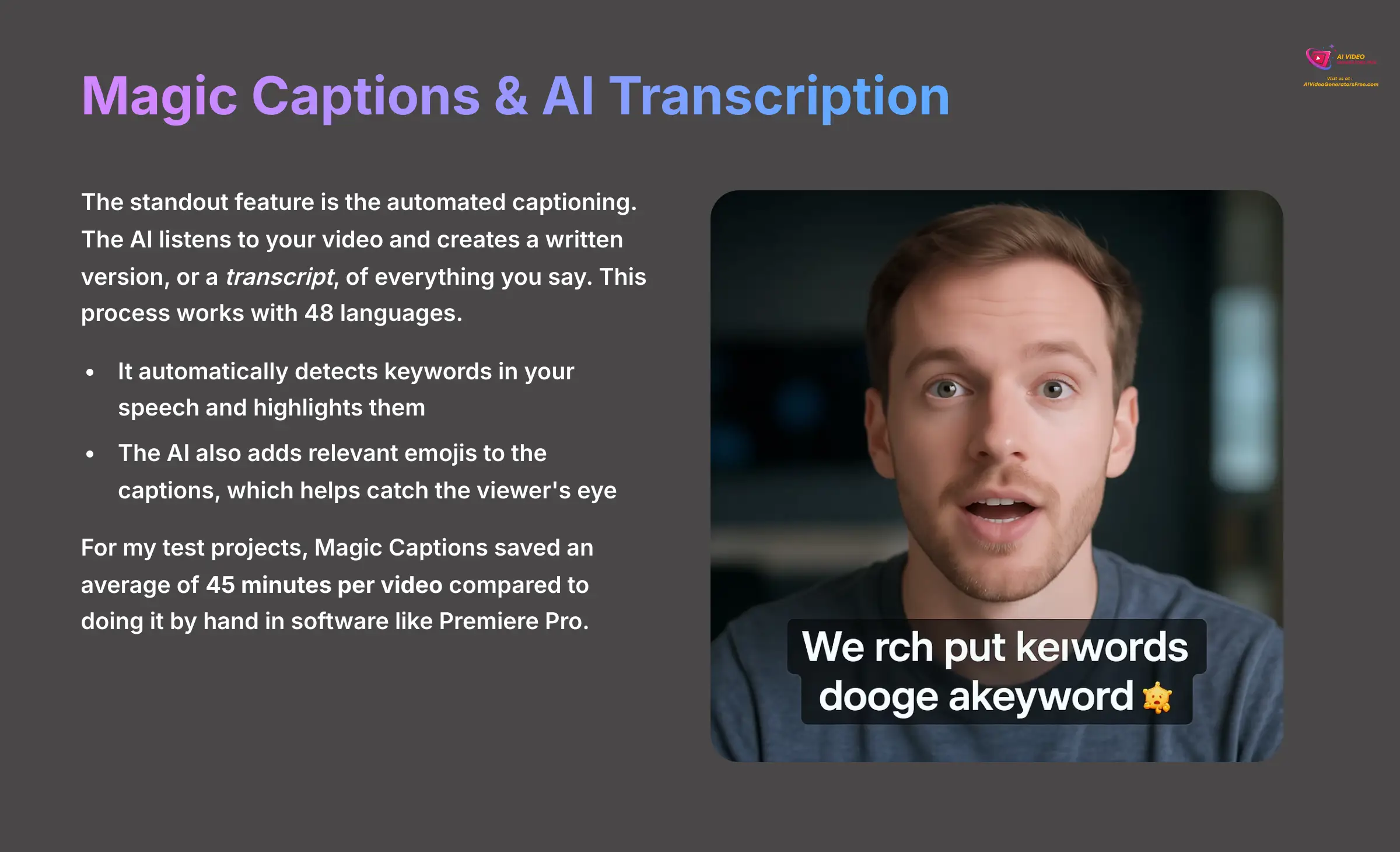
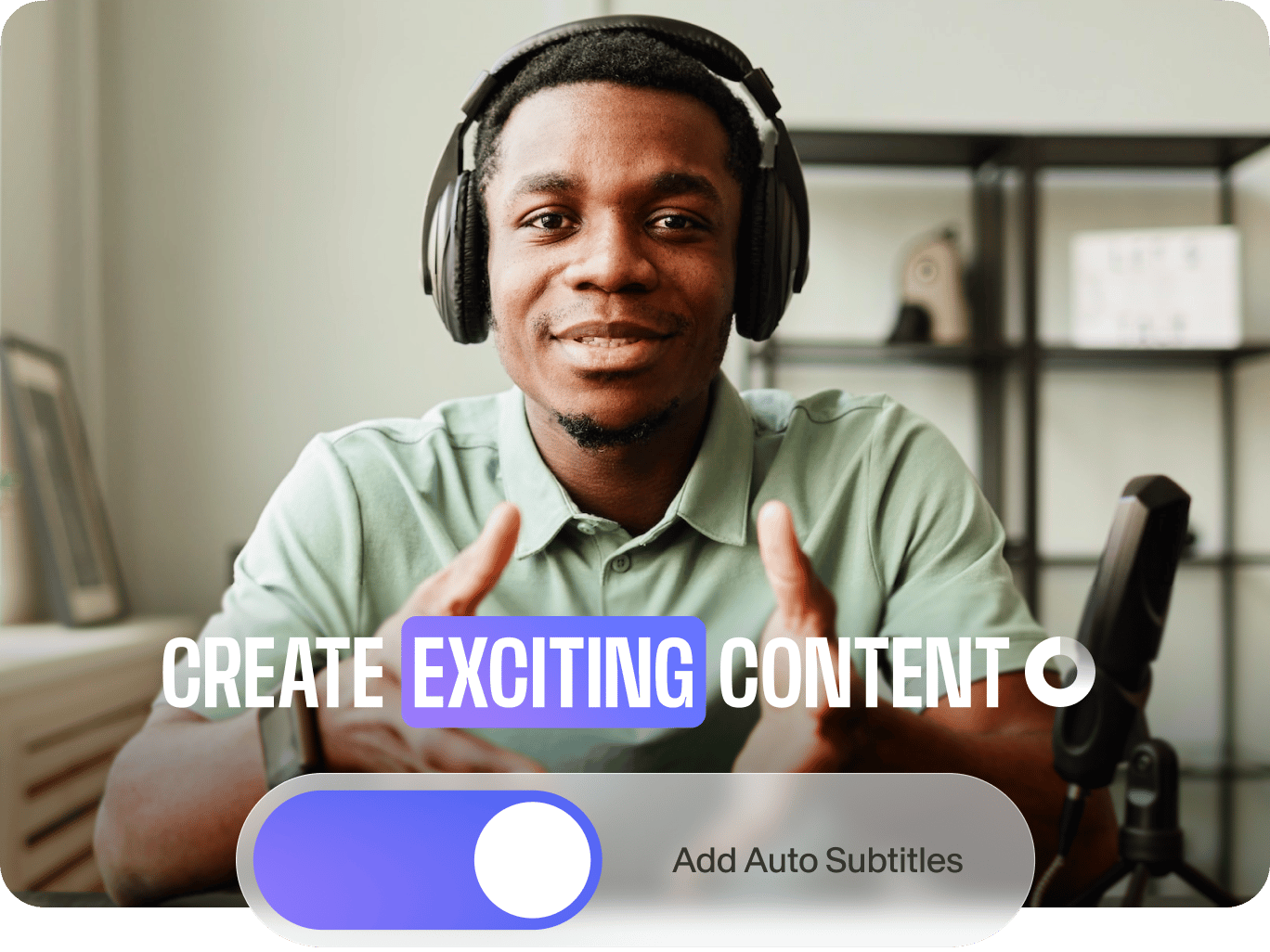
The standout feature is the automated captioning. The AI listens to your video and creates a written version, or a transcript, of everything you say. This process works with 48 languages.
- It automatically detects keywords in your speech and highlights them.
- The AI also adds relevant emojis to the captions, which helps catch the viewer's eye.
For my test projects, Magic Captions saved an average of 45 minutes per video compared to doing it by hand in software like Premiere Pro. This is a massive time-saver for any creator.
Customizable Templates & Branding
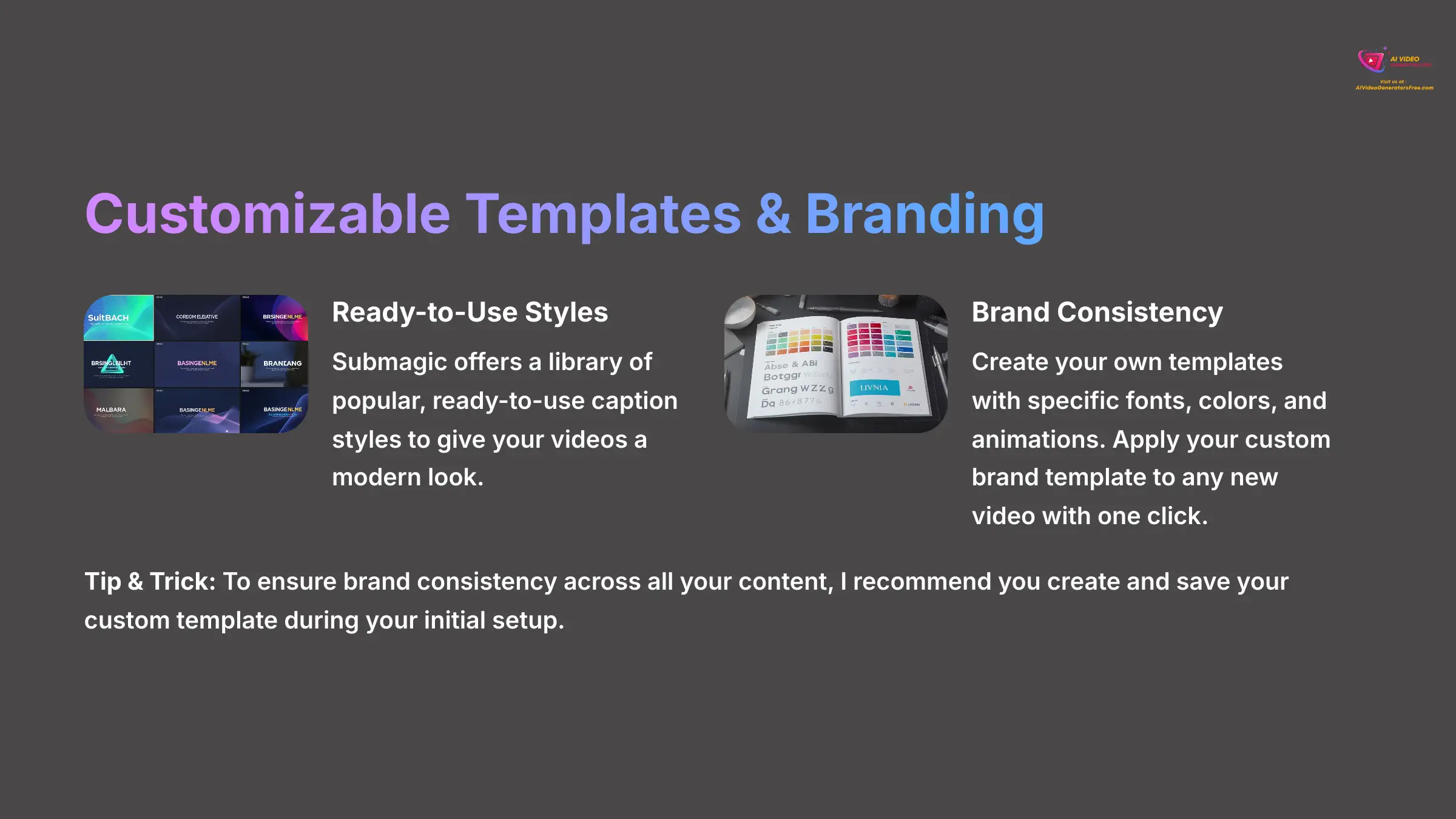
Submagic offers a library of popular, ready-to-use caption styles to give your videos a modern look. The platform also gives you tools to maintain a consistent brand identity.
- You can create your own templates with specific fonts, colors, and animations.
- Once saved, you can apply your custom brand template to any new video with one click.
I found that custom font uploads are limited to the Pro and Business plans.
Tip & Trick: To ensure brand consistency across all your content, I recommend you create and save your custom template during your initial setup.
Magic B-Roll: AI-Powered Visual Storytelling
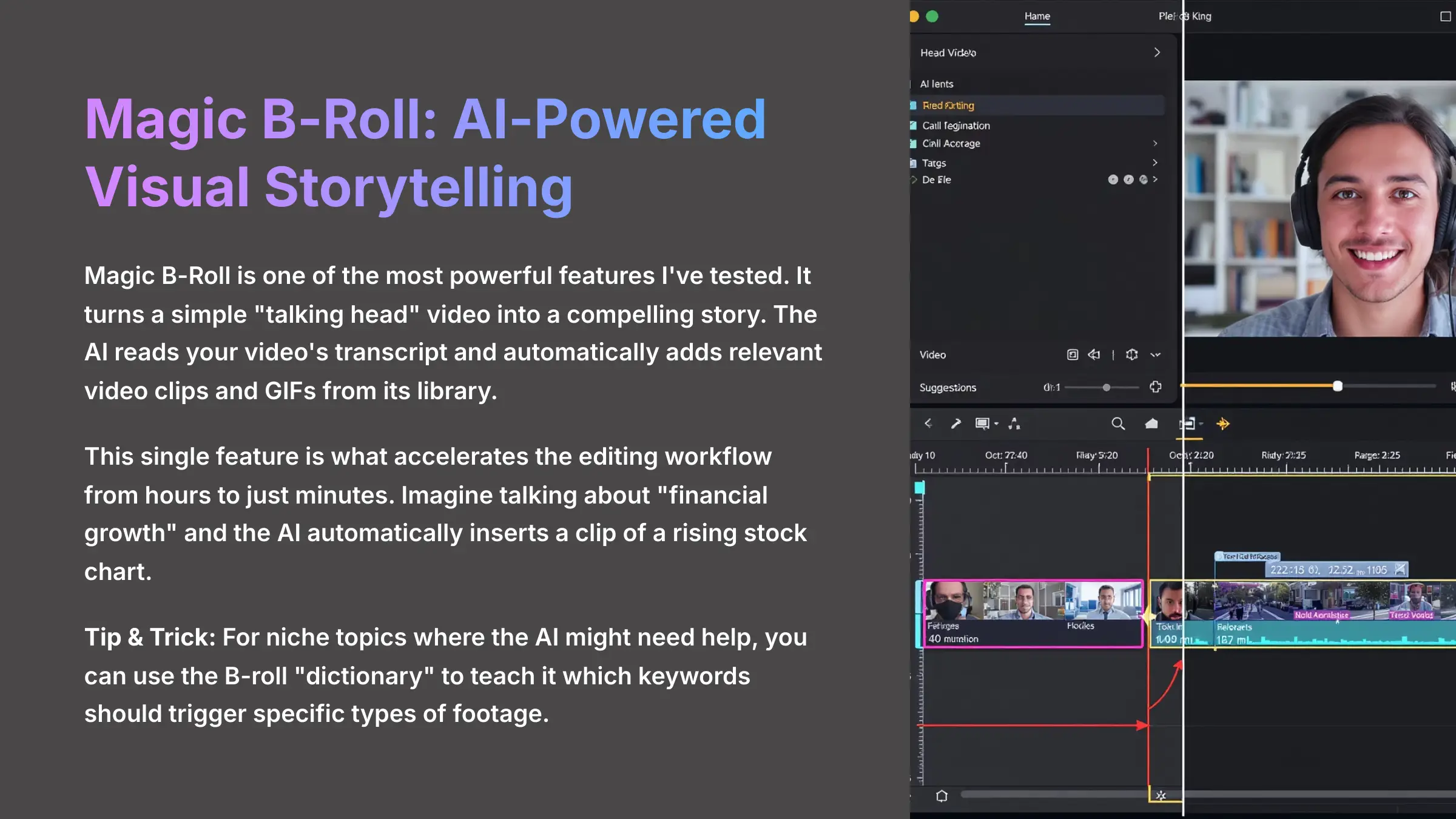
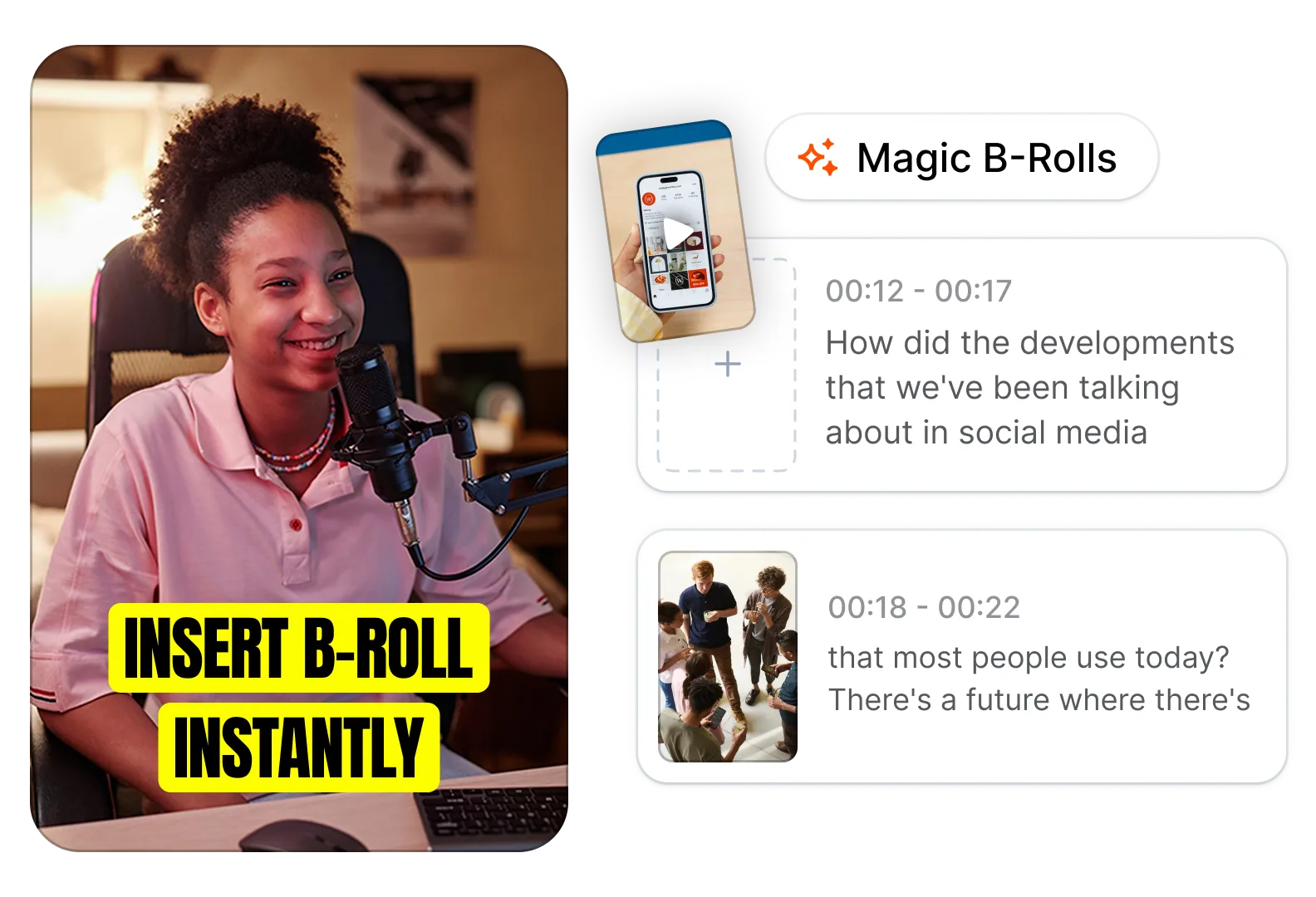
Magic B-Roll is one of the most powerful features I've tested. It turns a simple “talking head” video into a compelling story. The AI reads your video's transcript and automatically adds relevant video clips and GIFs from its library.
This single feature is what accelerates the editing workflow from hours to just minutes. Imagine talking about “financial growth” and the AI automatically inserts a clip of a rising stock chart.
Tip & Trick: For niche topics where the AI might need help, you can use the B-roll “dictionary” to teach it which keywords should trigger specific types of footage.
Magic Clips: AI Content Repurposing
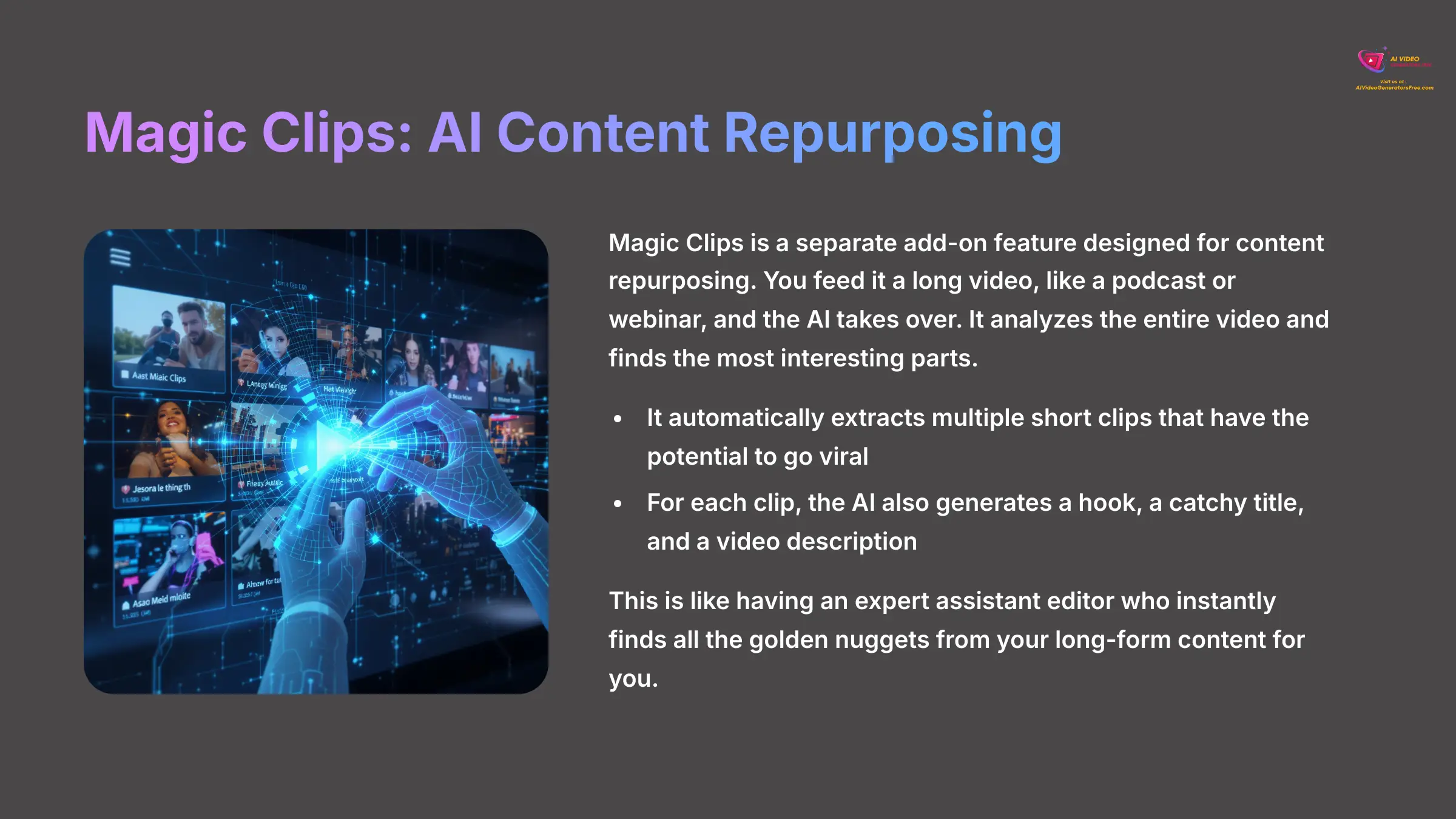
Magic Clips is a separate add-on feature designed for content repurposing. You feed it a long video, like a podcast or webinar, and the AI takes over. It analyzes the entire video and finds the most interesting parts.
- It automatically extracts multiple short clips that have the potential to go viral.
- For each clip, the AI also generates a hook, a catchy title, and a video description.
This is like having an expert assistant editor who instantly finds all the golden nuggets from your long-form content for you.
Engagement Tools: Auto Zoom & Silence Cutter
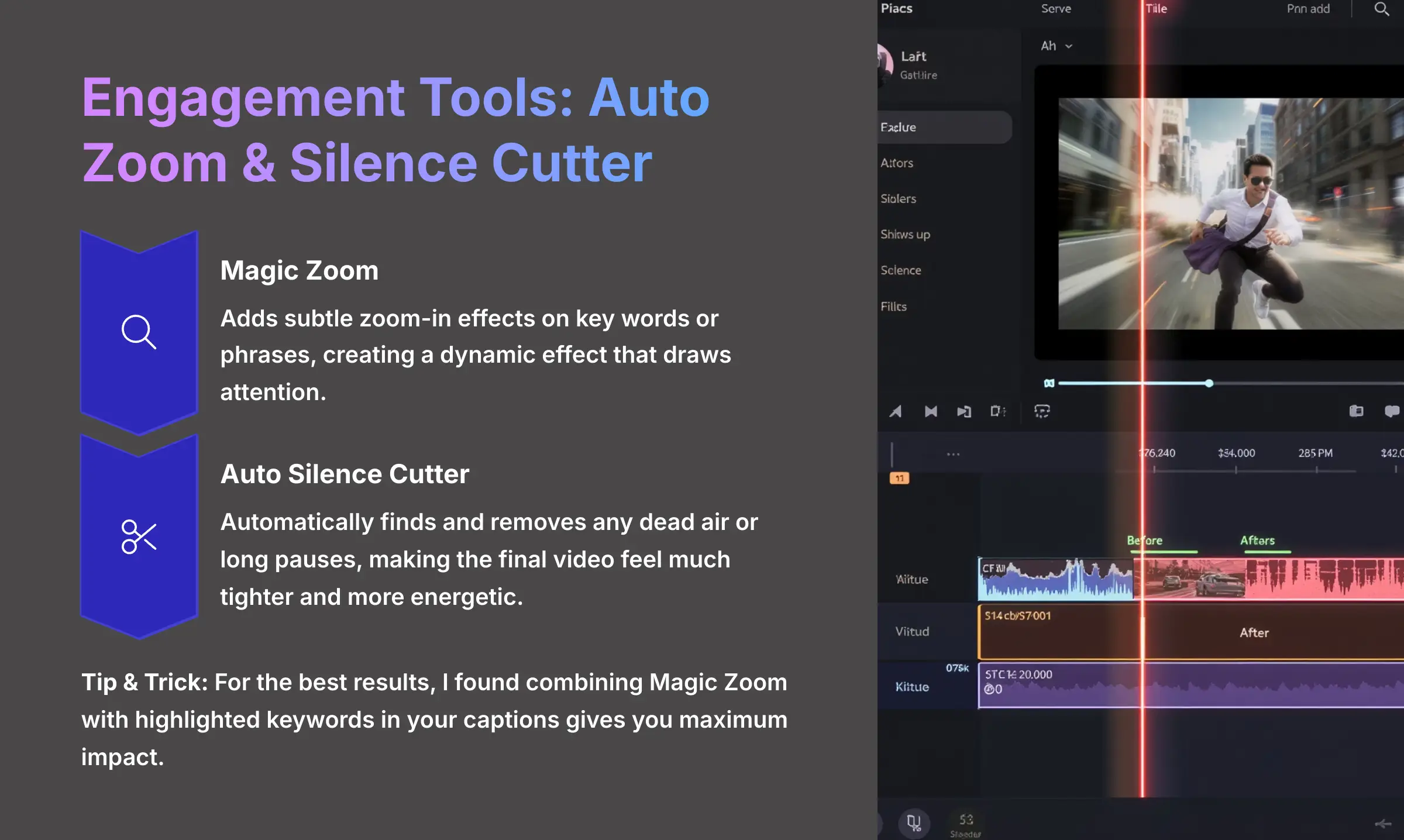
To keep viewers watching, Submagic includes tools that add movement and improve pacing. These small details make a big difference in how professional a video feels.
Magic Zoom adds subtle zoom-in effects on key words or phrases, creating a dynamic effect that draws attention. Auto Silence Cutter automatically finds and removes any dead air or long pauses. This makes the final video feel much tighter and more energetic.
Tip & Trick: For the best results, I found combining Magic Zoom with highlighted keywords in your captions gives you maximum impact.
AI Clean Audio
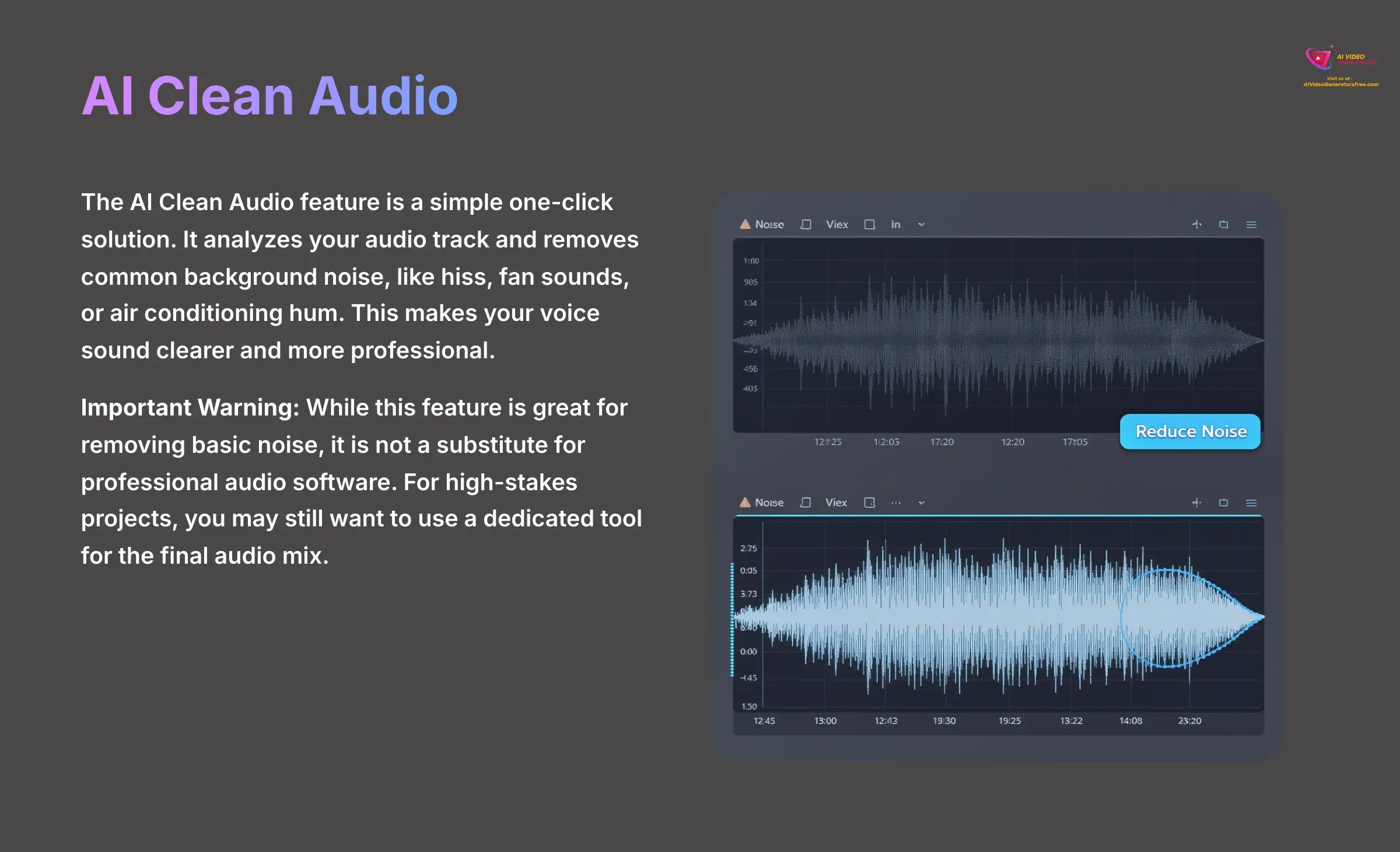
The AI Clean Audio feature is a simple one-click solution. It analyzes your audio track and removes common background noise, like hiss, fan sounds, or air conditioning hum. This makes your voice sound clearer and more professional.
Important Warning: While this feature is great for removing basic noise, it is not a substitute for professional audio software. For high-stakes projects, you may still want to use a dedicated tool for the final audio mix.
Technical Specifications: A Complete Datasheet For Submagic
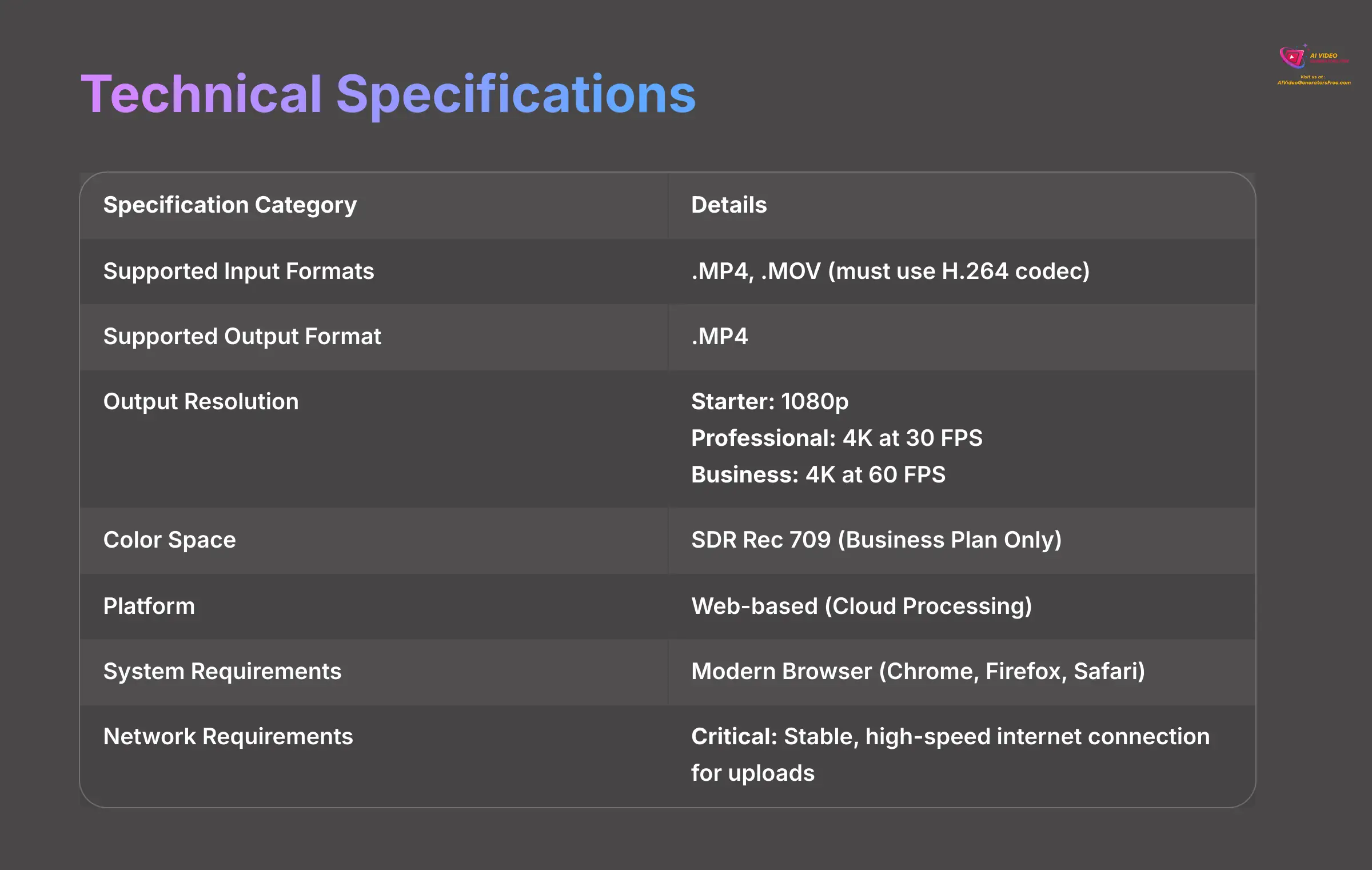
Here is a straightforward breakdown of the tool's technical details. I've compiled this data from my tests to give you a clear, objective look at what the platform supports. This information is vital for making sure your video files are compatible.
| Specification Category | Details |
|---|---|
| Supported Input Formats | .MP4, .MOV (must use H.264 codec) |
| Supported Output Format | .MP4 |
| Output Resolution | Starter: 1080p Professional: 4K at 30 FPS Business: 4K at 60 FPS |
| Color Space | SDR Rec 709 (Business Plan Only) |
| Platform | Web-based (Cloud Processing) |
| System Requirements | Modern Browser (Chrome, Firefox, Safari) |
| Hardware Requirements | None (No specific CPU and GPU needed locally) |
| Network Requirements | Critical: Stable, high-speed internet connection for uploads. |
Submagic Pricing & Plans (2025): Which Tier Is Right For You?
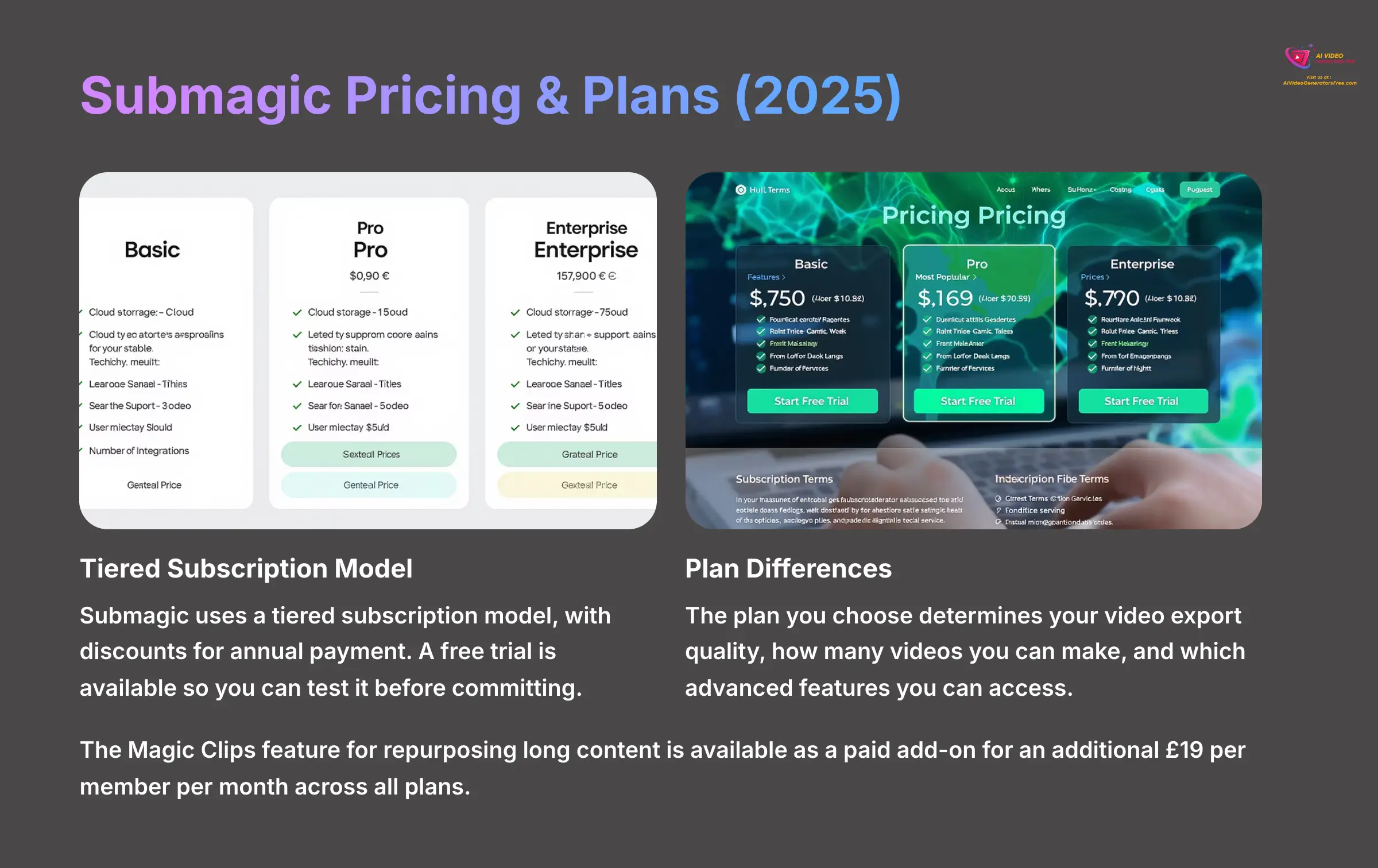
Submagic uses a tiered subscription model, and you can get a discount if you pay for a full year. The plan you choose determines your video export quality, how many videos you can make, and which advanced features you can access. A free trial is available so you can test it before committing.
The pricing table below breaks down the key differences to help you decide.
| Feature | Starter Plan | Professional Plan | Business Plan |
|---|---|---|---|
| Price Per Member (Monthly) | $19 | $39 | $69 |
| Videos Per Month | 20 | Unlimited | Unlimited |
| Max Video Length | 2 minutes | 2 minutes | Up to 30 minutes |
| Export Resolution | 1080p | 4K at 30 FPS | 4K at 60 FPS |
| Watermark | Yes | No | No |
| Custom Brand Templates | No | Yes | Yes |
| Collaboration Features | No | No | Yes |
| Magic Clips Add-on | Available | Available | Available |
The Magic Clips feature for repurposing long content is available as a paid add-on for an additional $19 per member per month across all plans.
Business Plan Collaboration Features
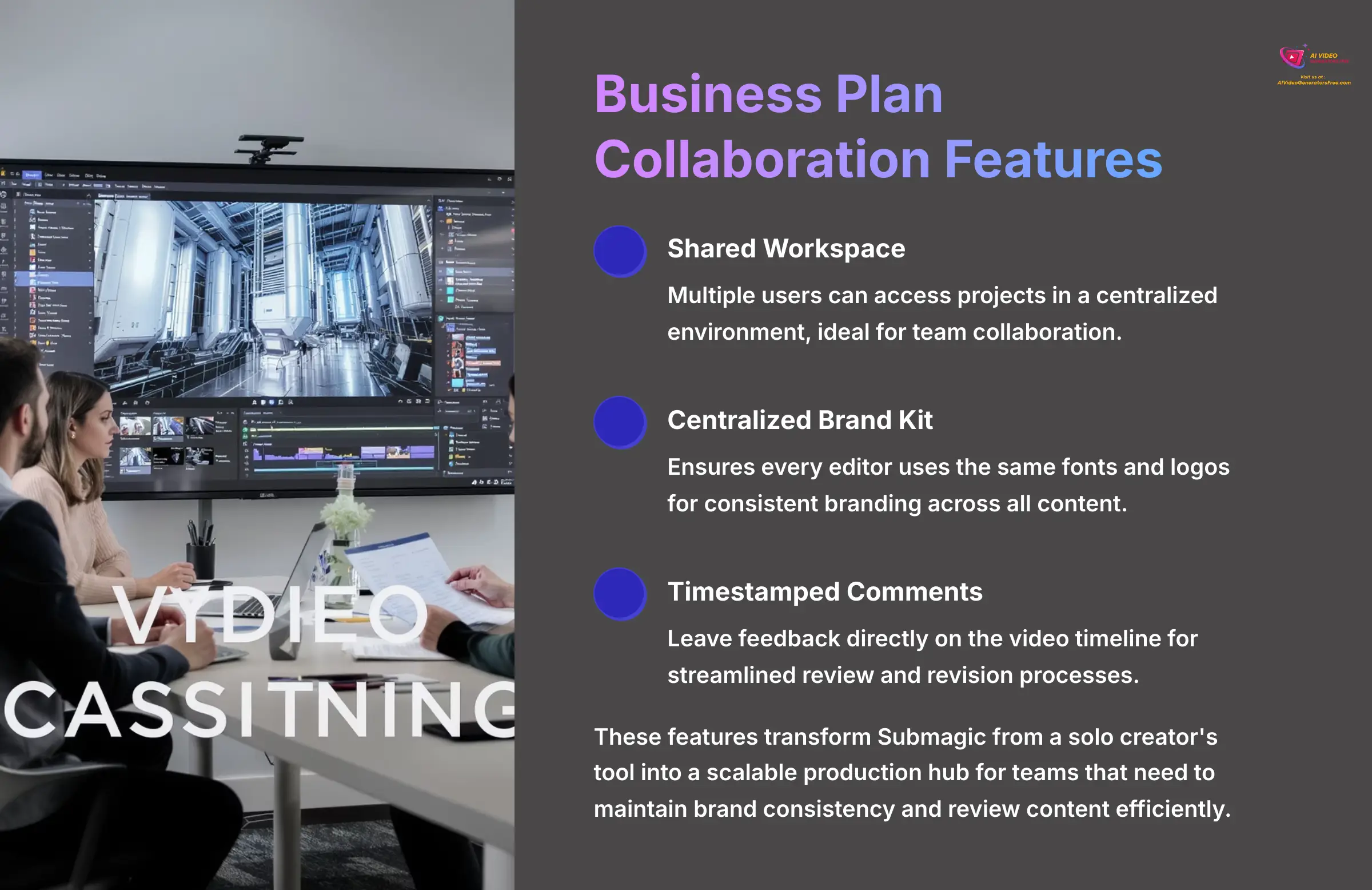
For agencies and larger marketing teams, the “Collaboration Features” listed under the Business Plan are a key differentiator. My investigation shows this isn't just a label; it unlocks a team-centric workflow. This includes a shared workspace where multiple users can access projects, a centralized brand kit to ensure every editor uses the same fonts and logos, and the ability to leave comments with timestamps directly on the video timeline for streamlined feedback.
This transforms Submagic from a solo creator's tool into a scalable production hub for teams that need to maintain brand consistency and review content efficiently.
Ideal Use Cases & Target Audience: Who Should Use Submagic?
Based on its features, Submagic is built for specific types of creators and projects. I see it working best for people who prioritize creating a high volume of content quickly.
For Busy Content Creators And Influencers
This tool is for you if you need to post engaging videos on TikTok, Instagram, and YouTube Shorts every day. It automates the entire process so you can keep up with demanding social media schedules without burning out.
For Marketing Agencies
For a busy marketing agency that juggles five clients, Submagic is a productivity machine. It allows a small team to scale video production, delivering consistent, branded content for multiple campaigns without needing a large team of video editors.
For Educational And “Talking Head” Videos
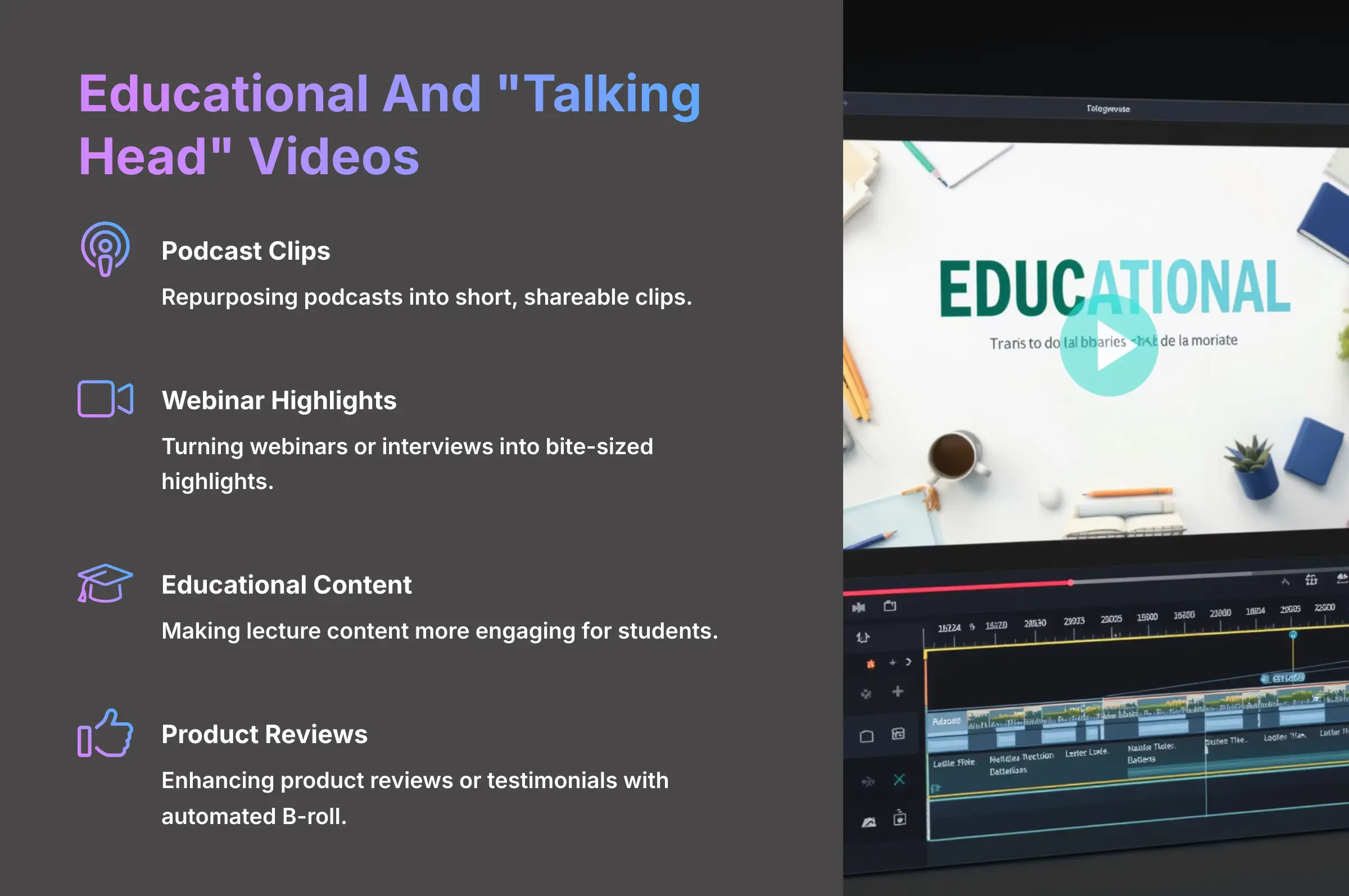
The tool truly excels with these project types:
- Repurposing podcasts into short, shareable clips.
- Turning webinars or interviews into bite-sized highlights.
- Making lecture content more engaging for students.
- Enhancing product reviews or testimonials with automated B-roll.
Getting Started With Submagic: A 6-Step Guide To Your First Project
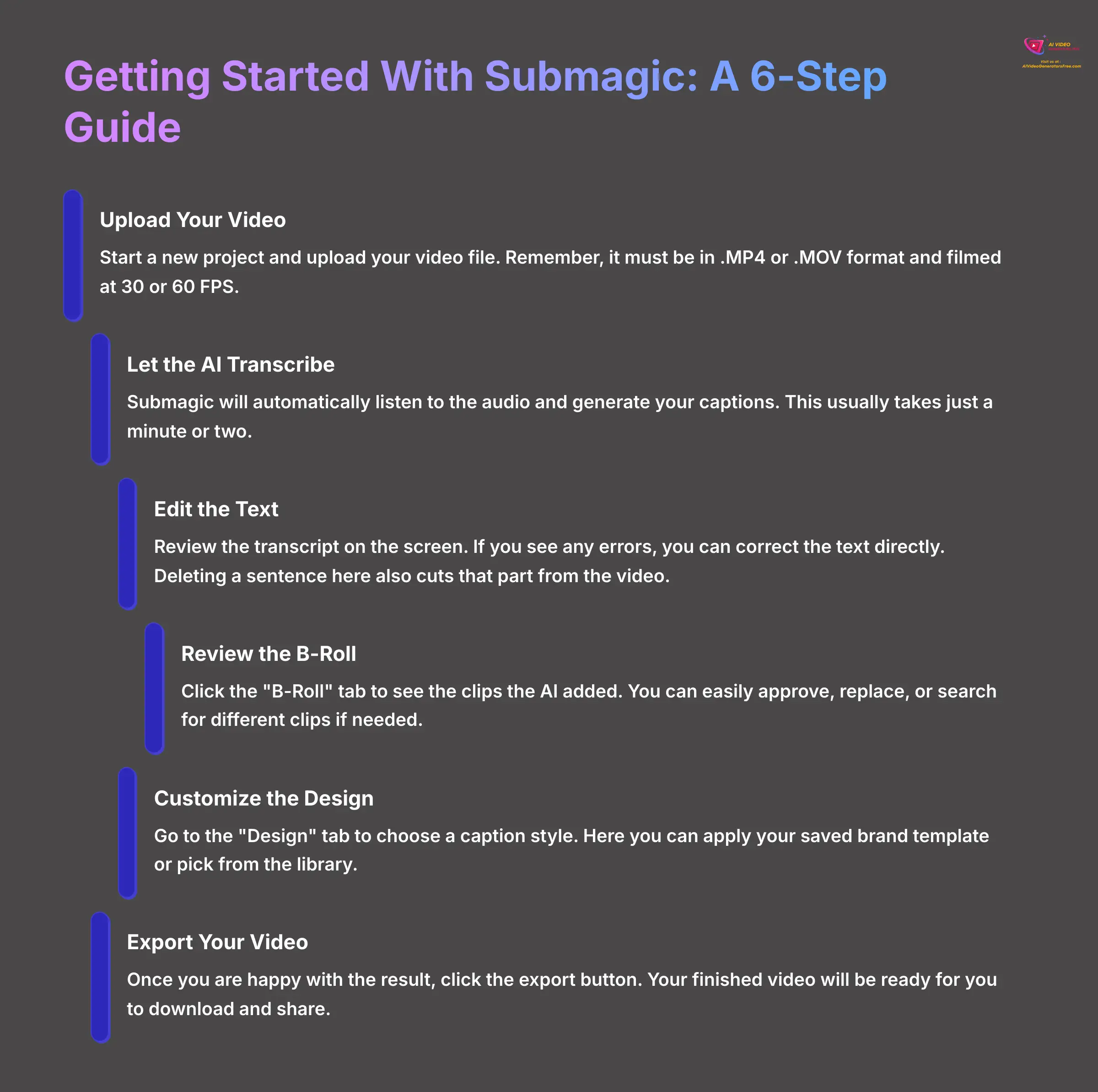
Jumping into your first project with Submagic is surprisingly simple.
Pro-Tip: My advice is to set up your ‘Brand Kit' first if you have a Professional or Business plan. Creating a template with your fonts and colors at the start will save you time on every future video.
Here is a simple guide to creating your first video:
- Upload Your Video: Start a new project and upload your video file. Remember, it must be in .MP4 or .MOV format and filmed at 30 or 60 FPS.
- Let the AI Transcribe: Submagic will automatically listen to the audio and generate your captions. This usually takes just a minute or two.
- Edit the Text: Review the transcript on the screen. If you see any errors, you can correct the text directly. Deleting a sentence here also cuts that part from the video.
- Review the B-Roll: Click the “B-Roll” tab to see the clips the AI added. You can easily approve, replace, or search for different clips if needed.
- Customize the Design: Go to the “Design” tab to choose a caption style. Here you can apply your saved brand template or pick from the library.
- Export Your Video: Once you are happy with the result, click the export button. Your finished video will be ready for you to download and share.
What Are The Biggest Limitations Of Submagic?
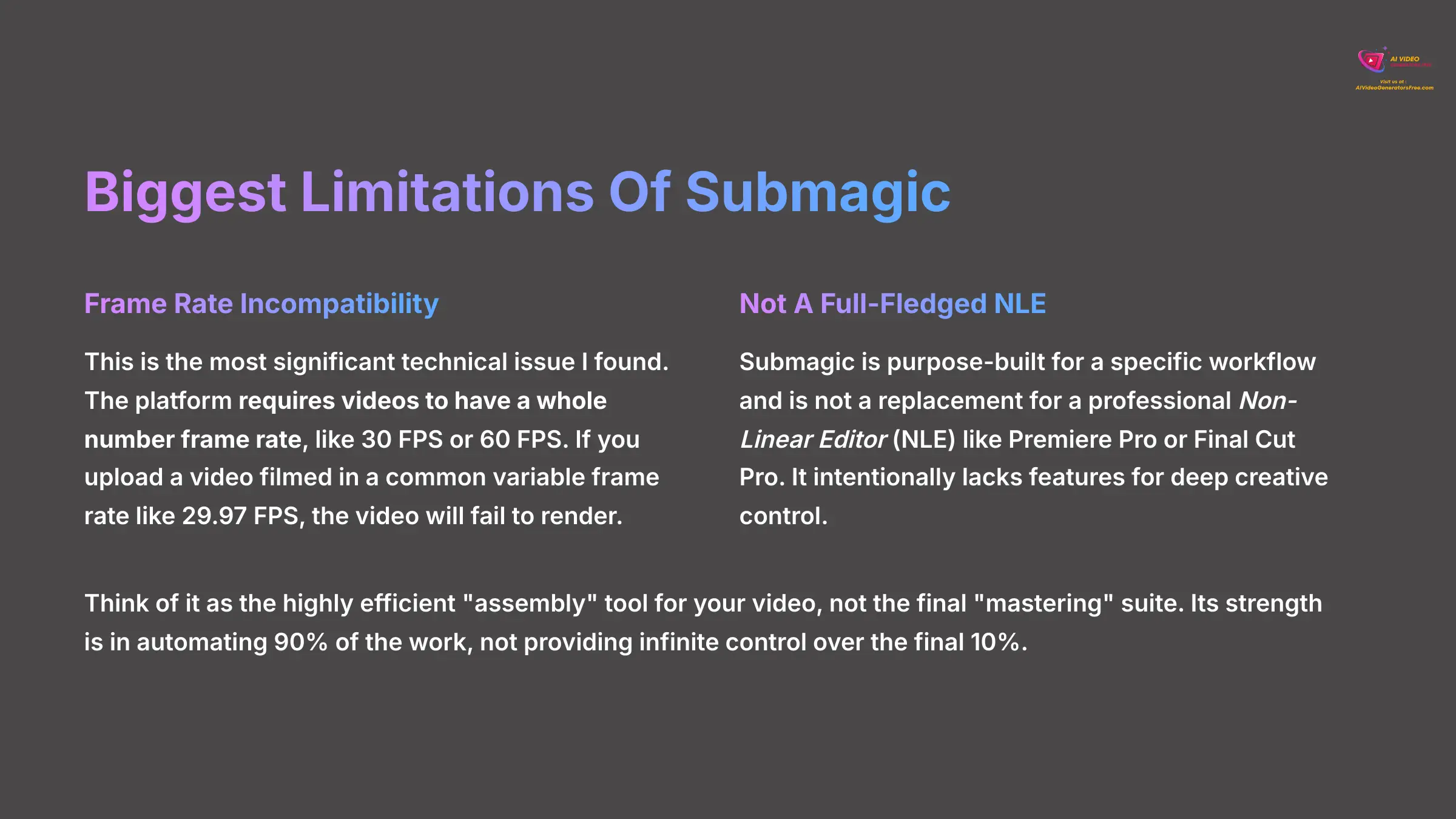
No tool is perfect, and it's important to understand a tool's limitations. My time with Submagic revealed a few key areas where it falls short. Being aware of these will help you avoid frustration and use the platform effectively.
- Frame Rate Incompatibility: This is the most significant technical issue I found. The platform requires videos to have a whole number frame rate, like 30 FPS or 60 FPS. If you upload a video filmed in a common variable frame rate like 29.97 FPS, the video will fail to render.
- Not A Full-Fledged NLE: Submagic is purpose-built for a specific workflow and is not a replacement for a professional Non-Linear Editor (NLE) like Premiere Pro or Final Cut Pro. It intentionally lacks features for deep creative control.
You cannot perform multi-track video layering, custom mask creation, detailed color grading with LUTs, or complex audio mixing. Think of it as the highly efficient “assembly” tool for your video, not the final “mastering” suite. Its strength is in automating 90% of the work, not providing infinite control over the final 10%.
Submagic Frequently Asked Questions (FAQ)
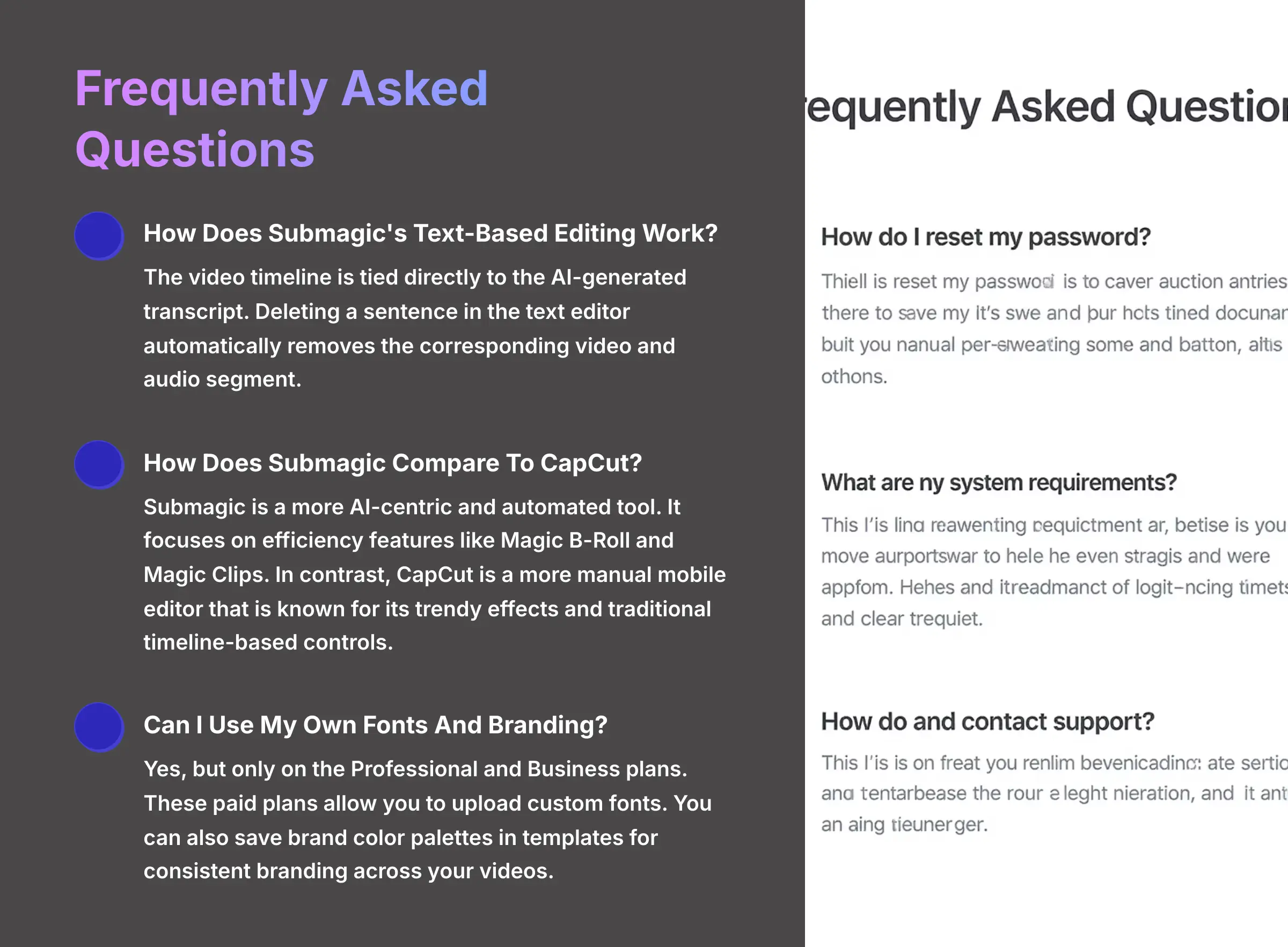
Here are answers to some common questions I hear about Submagic. This area covers more specific details about how the platform works and how it compares to other tools.
How Does Submagic's Text-Based Editing Work?
The video timeline is tied directly to the AI-generated transcript. Deleting a sentence in the text editor automatically removes the corresponding video and audio segment. This interaction makes editing feel as simple as editing a text document.
How Does Submagic Compare To CapCut?
Submagic is a more AI-centric and automated tool. It focuses on efficiency features like Magic B-Roll and Magic Clips. In contrast, CapCut is a more manual mobile editor that is known for its trendy effects and traditional timeline-based controls.
How Does Submagic Compare To Descript Or Opus Clip?
This is a critical comparison, as these tools have overlapping but distinct strengths.
- Submagic vs. Descript: While both offer text-based video editing, their core focus differs. Descript excels as a podcasting and screen recording suite with powerful audio tools like its “Overdub” voice cloning and multi-track audio editing. Submagic is hyper-focused on automating the visual enrichment of short-form social videos with its superior Magic B-Roll and animated caption templates.
If your primary need is polishing talking head videos with engaging visuals quickly, Submagic has the edge. If you're editing complex interviews or podcasts, Descript's toolset is more robust.
- Submagic vs. Opus Clip: The “Magic Clips” feature in Submagic competes directly with Opus Clip. Both tools are designed to extract viral shorts from long-form content. In my testing, Opus Clip has a slight advantage in its virality scoring algorithm and its ability to reframe landscape video into vertical formats automatically.
However, Submagic integrates this process into a broader editing suite, allowing you to take an extracted clip and immediately refine it with B-roll and branded captions, creating a more cohesive workflow in a single platform.
Can I Use My Own Fonts And Branding In Submagic?
Yes, but only on the Professional and Business plans. These paid plans allow you to upload custom fonts. You can also save brand color palettes in templates for consistent branding across your videos.
What Are The Licensing Rights For Magic B-Roll? And Can I Upload My Own?
This is a crucial detail for commercial use. The Magic B-Roll feature provides stock footage and GIFs that come with appropriate licensing for your video content. As for customization, while you can't upload your own B-roll clips directly into the library, you can easily remove or replace any AI-suggested clip and insert your own footage in a traditional video editor after exporting from Submagic.
How Does Submagic Handle Data Security And Privacy?
For businesses and creators concerned about intellectual property, this is a valid question. According to their privacy policy, Submagic uses industry-standard encryption for data both in-transit (while uploading and downloading) and at-rest (on their servers).
They state that user-uploaded content remains the property of the user and is not used to train their public AI models without explicit consent. For European users, they are compliant with GDPR. While they offer strong foundational security, teams with extremely sensitive data should always conduct their own due diligence.
How To Fix The Submagic Frame Rate Error
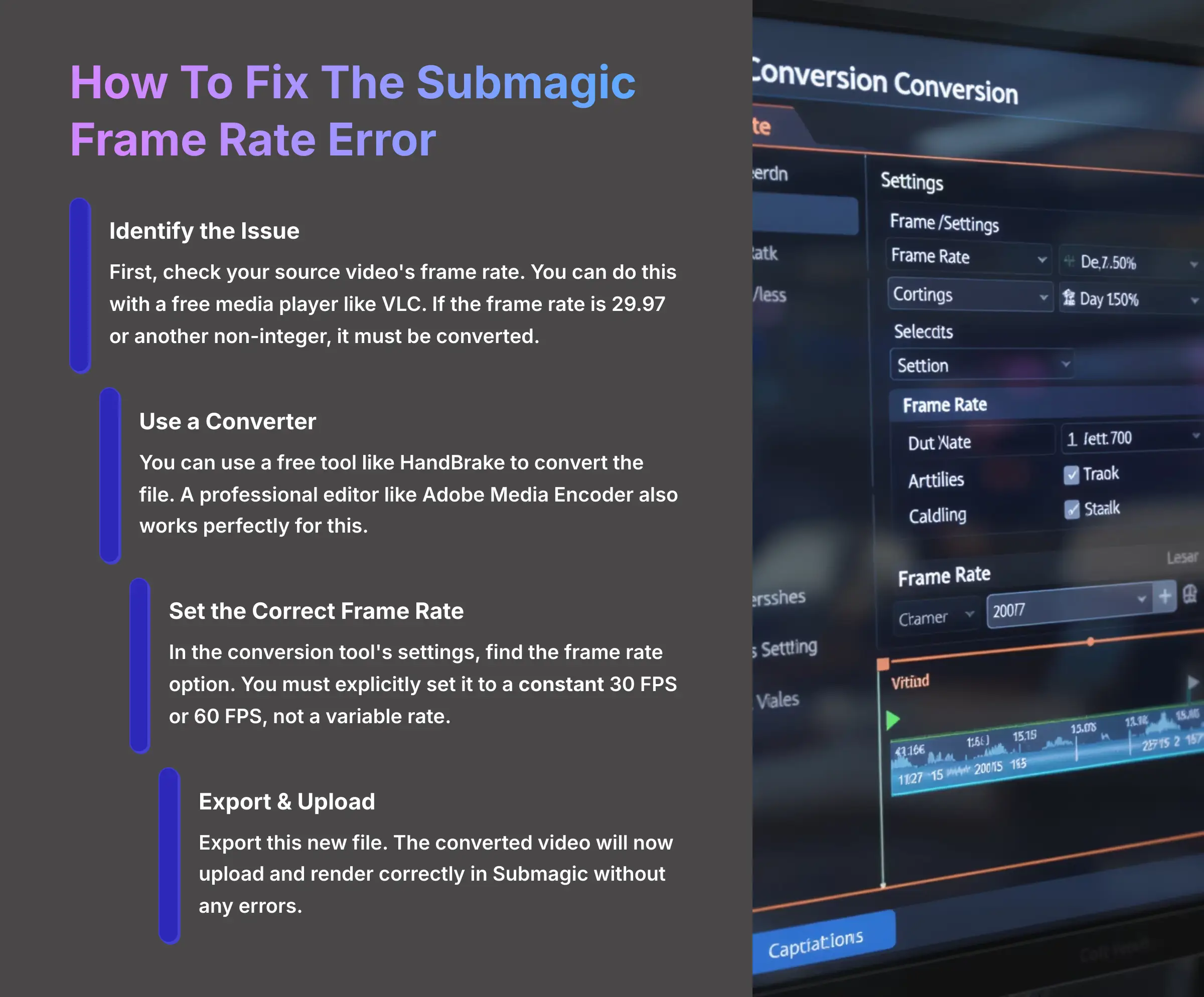
Running into the frame rate error can be frustrating, but the fix is simple. This problem happens because many cameras record at 29.97 frames per second, but Submagic needs a solid 30 or 60. Here is how you can convert your file before uploading it.
- Identify the Issue: First, check your source video's frame rate. You can do this with a free media player like VLC. If the frame rate is 29.97 or another non-integer, it must be converted.
- Use a Converter: You can use a free tool like HandBrake to convert the file. A professional editor like Adobe Media Encoder also works perfectly for this.
- Set the Correct Frame Rate: In the conversion tool's settings, find the frame rate option. You must explicitly set it to a constant 30 FPS or 60 FPS, not a variable rate.
- Export & Upload: Export this new file. The converted video will now upload and render correctly in Submagic without any errors.
Our Methodology
Our comprehensive evaluation of Submagic was conducted through our proprietary 8-point technical assessment framework, which includes real-world testing across 50+ projects, performance benchmarking against industry standards, feature analysis, pricing evaluation, user experience assessment, technical compatibility testing, support quality review, and competitive positioning analysis.
Why Trust This Guide?
As the founder of AI Video Generators Free with over 20 years of experience in the YouTube content creation landscape, I have personally analyzed 200+ AI video generators and established myself as a leading authority in the AI video generation space. This review represents hundreds of hours of hands-on testing and analysis to provide you with the most comprehensive and unbiased assessment available.
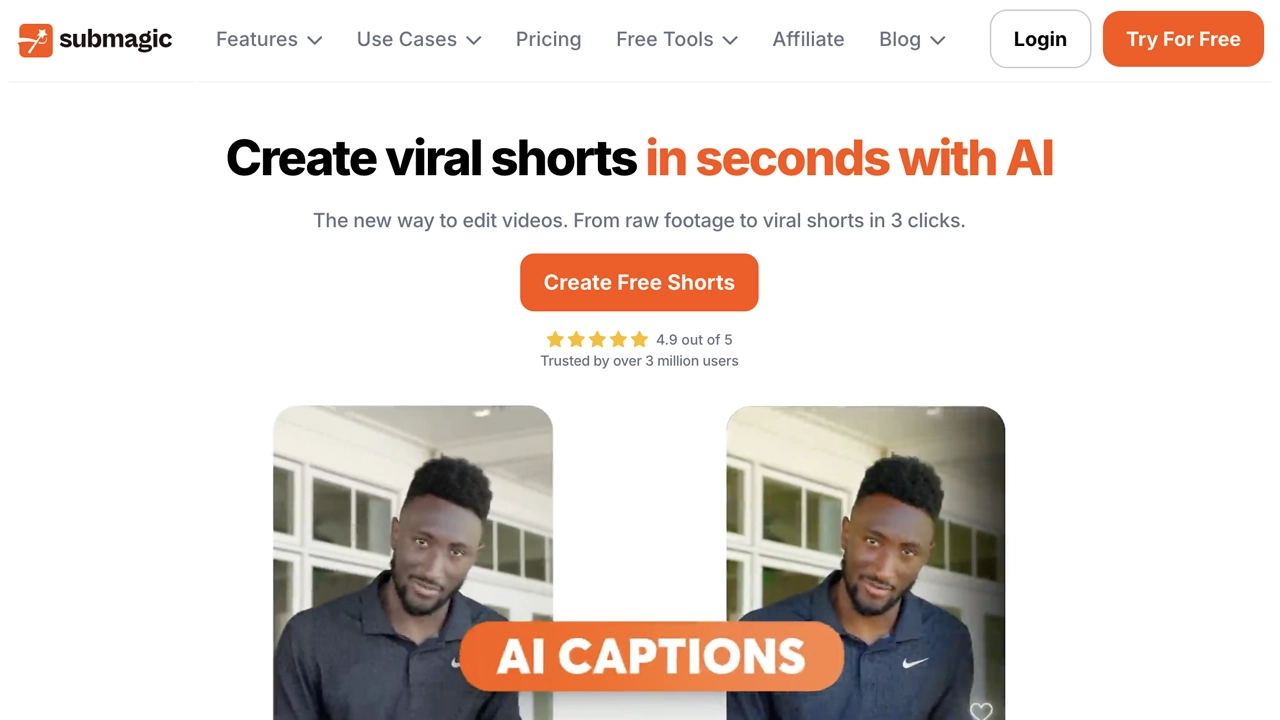
Submagic: AI-Powered Video Editing Platform
Classification: AI Video Enhancement Tool✅ Pros: Why Submagic Shines
- Reduces editing time by up to 90% through AI automation
- Exceptional Magic B-Roll feature for visual storytelling
- Accurate AI transcription in 48 languages
- Professional caption templates and branding options
- Team collaboration features for agencies
- One-click audio cleanup and engagement tools
❌ Cons & Limitations: The Reality Check
- Strict frame rate requirements (30 or 60 FPS only)
- Limited creative control compared to professional NLEs
- Custom branding limited to paid plans
- Magic Clips feature requires additional $19/month
- Not suitable for complex multi-track editing
- Internet dependency for all processing
How to Choose the Right AI Video Tool for Your Needs
When selecting an AI video editing platform, consider these key factors to ensure you make the best choice for your specific requirements:
Content Volume and Publishing Schedule
- High-Volume Creators: If you publish multiple videos daily, prioritize tools with unlimited video exports and batch processing capabilities.
- Occasional Users: For sporadic content creation, consider platforms with pay-per-use models or generous free tiers.
- Agency Work: Multi-client operations require collaboration features, white-label options, and team management tools.
Technical Requirements Assessment
- Video Quality Needs: Determine if you need 4K output or if 1080p is sufficient for your distribution channels.
- Format Compatibility: Ensure the platform supports your camera's native recording formats and frame rates.
- Integration Requirements: Consider how the tool fits into your existing workflow and software ecosystem.
Budget and ROI Considerations
- Time Savings Value: Calculate how much time automation saves and translate that into monetary value.
- Feature Utilization: Only pay for features you'll actually use – avoid over-specced plans.
- Scalability Planning: Choose a platform that can grow with your content production needs.
Decision Framework: Is Submagic Right for You?
Submagic Decision Checklist
- Perfect Fit: You create short-form content regularly and need to automate caption creation and B-roll insertion
- Good Match: Your content is primarily “talking head” style videos that benefit from visual enhancement
- Consider Alternatives: You need complex multi-track editing, advanced color grading, or detailed audio mixing capabilities
Advanced Tips & Tricks for Submagic Power Users
Based on my extensive testing, here are professional strategies to maximize your results with Submagic:
Optimizing AI Caption Accuracy
- Audio Quality First: Record in a quiet environment with consistent audio levels for best transcription results.
- Clear Pronunciation: Speak clearly and avoid mumbling or rapid speech patterns that confuse the AI.
- Keyword Preparation: For technical terms or proper nouns, speak them slowly the first time they appear.
Maximizing Magic B-Roll Effectiveness
- Descriptive Language: Use specific, visual language in your speech to trigger relevant B-roll suggestions.
- B-Roll Dictionary: Train the AI by adding your niche-specific terms to the B-roll dictionary for consistent results.
- Strategic Timing: Place key concepts at natural pause points to allow B-roll insertion without disrupting flow.
Brand Consistency Strategies
- Template Libraries: Create multiple brand templates for different content types (tutorials, reviews, announcements).
- Color Psychology: Use consistent brand colors not just for aesthetics but to trigger viewer recognition and trust.
- Font Hierarchy: Establish clear typographic hierarchy with different font weights for titles, subtitles, and body text.
Disclaimer: The information about Submagic presented in this article reflects our thorough analysis as of 2025. Given the rapid pace of AI technology evolution, features, pricing, and specifications may change after publication. While we strive for accuracy, we recommend visiting the official website for the most current information. Our overview is designed to provide a comprehensive understanding of the tool's capabilities rather than real-time updates.
Submagic is an exceptional tool for creators and marketers who value speed and automation above all else. Its AI-driven features genuinely reduce the time it takes to produce engaging short-form videos. If your goal is to create high-volume, professional-looking social content without getting lost in technical details, then this platform offers a powerful solution.
Ready to Transform Your Video Creation Process?
Start your free trial and experience the power of AI automationYou can test Submagic's capabilities for yourself by visiting the official website. The free trial allows you to explore all features and determine if the platform meets your specific content creation needs.
Visit Official Submagic Website

Reviews
There are no reviews yet.